> This is part 1 of 2 of the full documentation (pages 1–100 of 168).
> The content is paginated: fetch every part to see all of it.
> Next part: https://docs.senpiper.com/llms-full.txt/1
> Page index: https://docs.senpiper.com/llms.txt
# Introduction to Senpiper One Resource
## What is Senpiper's One Resource platform?
**Senpiper's One Resource** platform is a **low-code platform** where you can rapidly create business applications. These applications can be accessed both on **web and mobile** platforms.
It is a means for **visually designing an application as** per your business requirement. The platform offers a set of UI-based tools to [**configure and publish applications**](/getting-started/overview).
## Why should one opt for the One Resource platform?
* Enable users to create and use business process applications with **little to no coding knowledge.**
* Need to configure applications with a highly **intuitive and easy-to-use interface**
* Reduce development costs for creating and maintaining the applications
* Easily **integrate third-party systems** with **One Resource** into your platform for legacy modernization
> #### For more details please checkout the main website "[**www.senpiper.com**](https://docs.senpiper.com/www.senpiper.com)"
## Discover platform features
{% content-ref url="/pages/rZeJ84O3hlIPj9nOomn4" %}
[Overview](/getting-started/overview)
{% endcontent-ref %}
{% content-ref url="/pages/zzEhYGYeYheNpCoKNh3v" %}
[Log in to the platform](/getting-started/log-in-to-the-platform)
{% endcontent-ref %}
{% content-ref url="/pages/Pn2YHhBGf6dipE6g0VN4" %}
[Web workspace](/getting-started/web-workspace)
{% endcontent-ref %}
{% content-ref url="/pages/JRACHIRdJUsign5ZOVbh" %}
[Mobile Applications](/getting-started/mobile-applications)
{% endcontent-ref %}
{% content-ref url="/pages/zpXPHkbvWY9MbXpGNVgD" %}
[Groups/Applications](/groups-applications/groups-overview)
{% endcontent-ref %}
## Learn how to create an application
{% content-ref url="/pages/lnRqIzR3bSBoQCkyeH0C" %}
[HOW TO CREATE APPLICATIONS](/how-to-create-applications/overview)
{% endcontent-ref %}
{% content-ref url="/pages/-MlTCwl57wsT2pxFuHaF" %}
[FORM BUILDER](/form-builder/introduction)
{% endcontent-ref %}
{% content-ref url="/pages/-MfGSUN2PMowVEHYM5qx" %}
[WORKFLOW BUILDER](/workflow-builder/introduction)
{% endcontent-ref %}
{% content-ref url="/pages/-MhmxBuGKr\_Fxe0EWanQ" %}
[ALARM BUILDER](/alarm-builder/introduction)
{% endcontent-ref %}
{% content-ref url="/pages/-MkGTXMXlInucqC8aVGA" %}
[USER MANAGEMENT](/user-management/introduction)
{% endcontent-ref %}
# Overview
This page helps you understand the basic structure of the Senpiper One Resource platform
### Platform structure
Below is the basic structure of Senpiper one resource for digitizing your business processes.
How platform is structured
Let's explore the fundamental concepts of the platform
## Concept 1: Company sub-domain
A subdomain helps the system identify an organization. For example, in a URL "**mycompany.senpiper.com**" the following is the subdomain "**mycompany**". All your applications configured on the platform reside inside your company subdomain.
### **Register a company by requesting the Senpiper team**
[**Click here**](https://senpiper.com/company/contact-us.html) to raise the request and provide the subdomain of the company you want to register
{% hint style="info" %}
Once Senpiper team creates your subdomain, your login credentials fo system admin will be shared with you over the provided email
{% endhint %}
## Concept 2: Studio
Once a subdomain is registered, you can log into the company using the URL and start the configuration of the applications. [**Learn how to login into a company**](/getting-started/log-in-to-the-platform)
Super users of the platform who are not technically savvy or don't know coding can digitize their processes using the studio. The Studio has the following tools that can be used to configure any application.
## Concept 3: Workspace
Workspace is where your digital process/application resides once configured from the studio. Let's look at the workspace across different devices.
* [**Web workspace**](/getting-started/web-workspace)
* [**Mobile Applications (Android/iOS) workspace**](broken://pages/CRCJ4RSVLbYUwR7ta975)
# Log in to the platform
This page will help you understand the process of log in to the platform
## How do I log in to a company?
### **Web login**
Open the browser and type the URL with your subdomain mentioned e.g. if the subdomain is "**mycompany**" then the login URL would be "**mycompany.senpiper.com**"
### **App login**
1. Download the senpiper App from the [**Google playstore** ](https://play.google.com/store/apps/details?id=com.senpiper.android)or [**Apple App store**](https://apps.apple.com/in/app/senpiper/id1196090587)
2. Once the App is installed, enter the subdomain for your company
How to enter subdomain on the mobile App
## Configure Login Options
One Resource platform provides the ability to customize the login options for a sub-domain. This permission is enabled for the System Administrator of the company. [**Click here**](/general-system-settings/authentication-settings) to learn more about configuring the login options for any domain
### How do I find my subdomain?
* If you are starting fresh [**click here**](https://senpiper.com/company/contact-us.html) to register a subdomain
* If your subdomain is registered, then please contact your system admin for details
{% hint style="info" %}
Once the Senpiper team creates your subdomain, your login credentials for system admin will be shared with you over the provided email
{% endhint %}
### What are the privileges of a system admin?
A system admin is a user who can manage all the aspects of the Senpiper platform
* [**Managing users**](/user-management/managing-users)
* [**Creating groups**](/groups-applications/how-to-create-groups)
* [**Creating forms**](/form-builder/creating-forms)**,** [**workflows**](/workflow-builder/introduction/how-to-add-a-new-workflow)**,** and [**communication**](/alarm-builder/introduction)
* [**Managing roles**](/user-management/managing-user-roles) and [**permissions**](/user-management/managing-users/more-actions/tbd)
* Creating reports and dashboards
# Web workspace
**One Resource’s web workspace** is the user's homepage where you can get a **dashboard** view of your most recently or frequently accessed **groups/applications, alerts, profile,** and **reports**.
## Groups/Applications
In the **Workspace**, under **Groups**, click on the name of the group, the details of which are to be accessed. To learn more about Groups **click here**
Naviagte to a group
The details of the selected group are displayed.
Table view of a group
The **Groups** **Details** screen is divided into 3 components:
### 1. **Tab bar**
The user can navigate through the various views and features available for forms using the tab bar.
### 2. **Actions pane**
The **Actions** pane lists all the forms belonging to the group. The super admin can **create forms** and [**perform actions** ](/form-builder/more-form-options)on them from here.
### 3. **Form Details pane**
The form details can be viewed here in the preferred settings of the user, and the admin can perform individual actions on the forms belonging to the group from the **Form Details** pane.
## View Reports
To access the report details,
In the **Workspace**, under **Reports**, click on the report name, the details of which are to be accessed.
Navigate to reports
The details of the selected report are displayed.
View of a report
## Alerts
By clicking the alerts icon user will find all the alerts received across all of the processes. To configure alerts in any process, please [**click here** ](/alarm-builder/introduction)**to** learn more about alert configuration.
Notifications on web
## User Profile
user profile
# Mobile Applications
Once your Groups/Applications are configured successfully, users can use these applications over mobile on Android and iOS devices.
## Start with the mobile application
1. Download the senpiper App from the [**Google playstore** ](https://play.google.com/store/apps/details?id=com.senpiper.android)or [**Apple App store**](https://apps.apple.com/in/app/senpiper/id1196090587)
2. [**Login**](/getting-started/log-in-to-the-platform) into the mobile apps
## Mobile App Overview
Once the user is successfully logged into the mobile application following options are available for users.
### Home
Workspace is the home screen for your mobile App where all the [**groups or configured processes/applications**](/groups-applications/groups-overview) are listed.
Groups
### Reports
The reports tab shows all the configured dashboards and analytics for your processes.
Reports
### Contacts
The Contact tab shows all the users present in the organization. A user can initiate one-on-one chat communication with other users in the organization in this tab. [**Click here**](/user-management/introduction) to learn more about user management.
Contacts
### Alerts
In the alerts tab user will find all the alerts received across all of the processes. To configure alerts in any process, please [**click here** ](/alarm-builder/introduction)**to** learn more about alert configuration.
Alerts
### User Profile
The user profile section displays the details of the logged-in user. [**Click here**](/user-management/introduction) to learn more about managing user profiles.
user profile
### Settings
The settings section of the app shows different settings available for the users. The following settings are available for users.
Settings
#### Language settings
Using language settings user can select in which language the app content should be displayed.im
{% hint style="info" %}
The list of supported languages shown inside this setting can be customized. Please contact your system administrator to configure supported languages.
{% endhint %}
Langauge Settings
#### Notification settings
Using this setting user can mute/Unmute the notifications across groups/applications.
Notification Settings
# White-labeled Apps and custom domains
### What is a white-labeled mobile App?
White-labeled apps are custom-branded mobile applications(Android and iOS) per the customer's branding guidelines. e.g. a customer can publish an App with the name "**myApplication**" on the Android play store or iOS App store with the following personalization
* Users don't **need to add** the [**company sub-domain**](/getting-started/overview) while logging in
* Personalized App name on App store
* App icon as per customer branding guidelines
* Customized Splash screen
* Customized color scheme as per customer branding
### Is a white-labeled mobile app functionality different from the Senpiper Mobile Applications?
No, functionality wise the white labeled applications would be the same as Senpiper mobile App. The only difference is the personalization as per customer brand.
Users can use the configured applications/processes in both types of apps.
* White-labeled mobile apps.
* Senpiper mobile apps (add the company sub-domain while logging in)
### What is a custom URL?
Senpiper Platform provides customers an option to use a custom URL to login on to the web platform.
By default, the URL created for a company is "**mycompany.senpiper.com**". customer can request a custom URL to login ( e.g. **apps.mycompany.com**) to the web platform
# Groups Overview
Learn about the groups inside One Resource platform
## What are groups?
**A group** interchangeably can be referred to as **an application** is a workspace for your digital processes. A company domain (****) can have multiple groups. Each group contains the following basic entities.
* [**Forms**](/groups-applications/group-details-on-mobile-apps/form-submissions)
* [**Group members**](/groups-applications/managing-group-members)
* [**Media folders**](/media-folders/overview)
Relationship among different entities in One Resource platform
## Why do we need groups?
There can be multiple business processes or applications that may or may not be interlinked within an organization.
Groups provide a robust way to implement access control for different users and departments.
You can organize these entities into groups for better structure and access. The users belonging to a group can access [**the forms**](/form-builder/introduction) inside the group and [**collaborate using chat**](/groups-applications/group-details-on-mobile-apps/group-chat-features) among different group members.
## What are the prominent features of a group?
* Multiple groups can be created within an organization.
* All users who are a part of the organization may not necessarily be a part of all the groups.
* Depending on the requirements, users can be added to groups to oversee a particular process of a company.
# How to create groups?
To create groups,
1\. From the **Groups** dropdown list in the menu bar, click **Create New Group**.
The **New Group** screen is displayed.
The **New Group** screen is divided into two components:
a. General group and **Feature Visibility Settings**
b. [**Group member settings**](/groups-applications/managing-group-members#what-are-the-ways-for-managing-group-members)
2\. In the left pane, enter/select the details for the general feature settings as follows:
| Field | Description |
| ----------------- | -------------------------------------------------------------------------------------------------------------------------------------------------------------------------------------------------------------------------------------------------------------------------------------------------------------------- |
| Upload image | Upload a display picture for the group by clicking on the icon |
| Group Name | The name of the group |
| Group Description | The description for the group |
| Closed Group | Select this if you want non-admin members cannot see other users' submissions. In these types of groups, only "group admins" can view all the submissions |
| Open Group | Select this if you want the group chats to be visible to all the members of the group |
3\. In the left pane, under Feature Visibility Settings, select the details as required:
| Field | Description |
| -------------------------------------------------------------------------------------------------------------------------------------------------------- | --------------------------------------------------------------------------------------------------------------------------------------------------------------------------------------------------------------------------------------------------------------------- |
| Show scheduler to Admins and super admins | Select this if you want to display the **Scheduler** button to the admins and super admins in the tab bar of the **Group Details** screen |
| Show "Assigned to you" button to all users | Select this if you want to display the **Assigned to you** button to all the users in the tab bar of the **Group Details** screen |
| Show [**Learning centre**](/media-folders/overview) to all users |
Select this if you want to display the Media Directory button to all the users in the tab bar of the Group Details screen
The Media Directory is known as Learning Centre in the mobile app.
|
| Show [**Poll**](/groups-applications/group-details-on-web/group-chats#starting-a-poll) option under chat | Select this if you want to enable the option of taking polls for the group users in the chat view |
| Enable [**automatic group member management**](/groups-applications/managing-group-members/automated-user-management) | Select this if you want to allow automated user management of users with minimal user involvement. |
4\. In the right pane, [**add the required users to the group**](/groups-applications/managing-group-members/manual-user-management)**,** and at the bottom right of the screen, click **Create Group**.
Once the group is created it will be displayed as a card in the workspace under the **Groups** section.
Group card
The display picture of the group, the number of group members, the types of the group - open or closed, and the time of the group creation is displayed on the card.
# Open vs Closed groups
This page helps you the difference between open and close group
## Open Groups
In an open group, every user can see data submissions and chats of all the users inside the group.
{% hint style="info" %}
These types of groups shall be created when there is no restriction of limiting data access to different group members.
{% endhint %}
## Closed Groups
In a closed group form submissions and chats of Non-admin members can only see their submissions and chats. Admin and Super-admins of the groups can see submissions and chats of every group member.
{% hint style="info" %}
These types of groups shall be created when data access restrictions are required in a process.
{% endhint %}
## Key differences between Open vs closed groups
Feature
Open Group
Closed Group
Form submissions
Every submission is visible to every group member
Non admin members can only see their submissions
Group admins can see every group members submission
Chats
Every group member can see all the chats done in the group
Non-admin members can do conversations only with Admin members
Admins can do conversation with all the members of the group
# Managing group members
This page helps you understand how you can manage group members effectively
## What is a group member?
Each user in a group is known as a group member, and each group member can have their own roles inside a group based on the process requirement.
## Type of Group members
* Super Admins
* Admins
* Non-admins
## What are the ways to manage group members?
There are two ways of adding users to groups and managing them:
1. [**Manual User Management**](/groups-applications/managing-group-members/manual-user-management)
2. [**Automated User Management**](/groups-applications/managing-group-members/automated-user-management)
#### Let's learn about the different types of group members and their privileges.
# Types of group members
There are three kinds of roles for users inside a group:
## Non-admin Users
A **non-admin user** of a particular group in the One Resource platform can perform the following actions within the group:
* Make entries/submissions for a form
* Initiate a [**group chat**](/groups-applications/group-details-on-web/group-chats) with the members of the group
* Delete or update the submitted entries of a from if the "[**allow delete submissions**](https://docs.senpiper.com/groups-applications/managing-group-members/pages/-MlTKkP5aqISRU3pBTwE#2.-form-update-and-delete-settings)" setting is enabled for the form
* Add comments for the visible form submissions.
* View the [**media folder**](/media-folders/overview) inside a group
* Take [**workflow action**](/workflow-builder/introduction) on a form submission
{% hint style="info" %}
In a closed group, the Non-admin users can send chat messages only to the group admins and super admins
{% endhint %}
## Group Admins
* In addition to the Non-admin [**user privileges**](#users)**,** admins can:
* Add users to or remove users from a group.
* Promote or Demote users to and from the group admin role
* Broadcast messages in the form of text and multimedia
* Submit forms that are visible only to group admins and super admins
* View submissions of non-admin members in a closed group
## Super Admins
* In addition to the [**group admin privileges**](#group-admins)**,** super admins can:
* Update group name
* [**Create**](/form-builder/creating-forms), [**edit**](/form-builder/editing-forms), and [**delete** ](/form-builder/deleting-forms)forms
* [**Create** ](/workflow-builder/introduction/how-to-add-a-new-workflow)and [**edit** ](/workflow-builder/editing-workflows)workflows
* Promote users to the role of group Admin and Super Admins
Group Members
As you can see, the type of group member is mentioned against the name of the group member. Additionally, the contact details (including email ID and phone number) of the group member are mentioned.
# Manual Group member management
As the name suggests, **Manual User Management** involves adding, removing, and maintaining users in a group manually. This task is usually performed by the **Group Admins**
In this section, we are going to learn about the following topics:
1. [**Adding users to a group individually**](/groups-applications/managing-group-members/manual-user-management/adding-users-individually)
2. [**Adding users to a group in bulk**](/groups-applications/managing-group-members/manual-user-management/adding-users-in-bulk)
3. [**Removing users**](/groups-applications/managing-group-members/manual-user-management/removing-users)
# Adding users individually
To add users to a group individually,
1\. From the menu bar, in the **Groups** dropdown list, select the name of the group to which you want to add a user. The group details are displayed.
Navigate to group
2\. To add a user to the group, on the top right of the screen, click . The **Settings** screen is displayed.
Group Settings
3\. To add a user to the group manually, at the bottom right of the screen, click **Add Member**. The details for the **Add Member** dropdown list are displayed.
4\. From the Add Member dropdown list, click **Add members manually**. The **Add Members** window displays all the user lists that belong to the group from which you can search and select the group to be added.
5\. To select the member to be added to the group, \
In the **Search Members** bar, select the filter by which you want to search the user and enter the value for the value selected.\
**OR**\
If you know the user list name that the user belongs to, click on the user list and select the name of the user from the list.
Add users manually to group
6\. To add the user, at the bottom right of the **Add Members** window, click **Add**.\
The user is now a member of the group and is displayed in the member list.
Members added manually
# Adding users in bulk
To add users to a group in bulk,
1\. From the menu bar, in the **Groups** dropdown list, select the name of the group to which you want to add a user. The group details are displayed.
Navigating to group
2\. To add users to the group using a csv file, on the top right of the screen, click . The **Settings** screen is displayed.
Group Settings
3\. At the bottom right of the screen, click **Add Member** and then from the list, click **Download sample CSV**.
The CSV file gets downloaded to your device. It contains 2 columns - **Phone** & **Email**
4\. To add the users added to the CSV file to the group, at the bottom right of the screen, click **Add Member** and then from the list, click **Upload user list**.
5\. Select the file you want to upload from the device and click **Open**.
Members added by uploading Excel
# Removing users
To remove a user from a group,
1\. From the menu bar, in the **Groups** dropdown list, select the name of the group from which you want to remove a user. The group details are displayed.
Navigate to group
2\. To remove a user from the group, on the top right of the screen, click . The **Settings** screen is displayed.
Group Settings
3\. From the **Member List**, against the name of the user to be deleted, click .
Remove Group Member
4\. From the list of options, click **Remove <*****\>**. The **Remove user from the group** window is displayed.

{% hint style="info" %}
If no task is currently pending for the user, you will not be asked to delegate the user's tasks to another user. The user will be deleted from the **Member List** of the group.
{% endhint %}
5\. Under the **Delegate task to** dropdown list, select the user to whom you want to delegate John Smith's tasks to and click **Confirm Changes**.

The user is removed from the group successfully and and their tasks are delegated to the selected user.
# Automated user management
**Automated user management** allows you to manage a large set of users with **minimal human involvement**. With automated user management, you can specify criteria on parameters based o profile to add users to the group and remove users from the group.
{% hint style="info" %}
E.g. You want to automatically add those users to a sample group "Technology coordination" whose profile has the value in the field "department" as "technology"
If the value in the department is updated to something else like "accounts" those users should be removed automatically from the above-mentioned group
{% endhint %}
Specifying these criteria makes the system detect changes in the user profiles and propagate those changes within the group automatically.
The benefits of **Automated User Management** are:
1. Reduces manual data handling, thus **reducing the chance of error**
2. Gives the system admins a greater **access control**
3. **Reduces the workload** of system admins significantly since the tedious task of adding or removing members is automatically handled by the system.
# How to define criteria for adding users?
This page describes the
Users can be auto-added to a group by specifying conditions based on the roles or the fields of the user lists that they belong to.
To define a criteria for automated addition of users to a group member list,
1\. From the menu bar, in the **Groups** dropdown list, select the name of the group for which the criteria is to be defined. The group details are displayed.
Naviagte to group
2\. To add a user to the group, on the top right of the screen, click . The **Settings** screen is displayed.
Add users using a criteria
3\. In the right pane, under **Member List**, in the **Added through user profile** tab, click **View Criteria**. The **Select the user addition criteria for this group** window is displayed.
There are 2 entities based on which you define a criteria:
### a. Based on roles
i. In the **Select the user addition criteria for this group,** in the **Company Roles** tab, select the roles, to which the users assigned will be added to the group.

As you can see, from the **Company Roles** tab, we have added 2 **Company Defined Roles**, **Department Head** and **Finance Team,** the users assigned to which will be added as members of the **Reimbursement** group.
ii. Click **Continue**.

All the users assigned with the roles, **Department Head** and **Finance Team** will be added to the **Reimbursement** group. You can see the users in the **Member List** of the group.

### b. Based on user lists
i. In the **Select the user addition criteria for this group,** select the user list for which a criteria is to be specified for adding users to the group.
ii. Select one of the two radio buttons based on your requirement:
| Field | Description |
| ------------------------ | --------------------------------------------------------------------------------- |
| Select all users | Select this if you want all the users from the user list to be added to the group |
| Select specific user set | Select this if you want to specify criteria for specific fields |
For the **Employee** user list, we will add the criteria that the users whose names start with **J** and whose email IDs contain **gmail** be auto-added to the **Member List** of the **Reimbursement** group.
iii. To specify criteria for specific fields, click **Select Fields**.
The list of fields in the user list is displayed.

iv Select the required fields and click **Apply**.\
As you can see, we have selected the fields **Name** and **Email** as per the above specified criteria.
v. Enter the operator and the value for the selected fields and then click **Continue**.
**Criteria 1: The name of the user starts with J**

**Criteria 2: The email address of the user contains 'gmail'**

The **Member List** is updated with the users as per the specified criteria.

You can also add criteria for multiple user lists. Let's say in addition to the **Employee** user list, we also want to add a criteria for the **Audit Team** user list. To do so, on the top right of the **Member List,** click **View Criteria**.

We we will add the criteria for the **Audit Team** user list in the similar manner as we did for the **Employee** user list. Let's say say we want to add the criteria that all the users of the **Audit Team** user list having a **Designation** that ends with d must be auto-added to the **Member List** of the **Reimbursement** group.

{% hint style="info" %}
In cases where the criteria is added for multiple user lists, the system will pick users and will display them in the **Member List** based on the **OR** operating condition meaning all the criteria need not be satisfied. Even if the criteria for one of the user lists is satisfied, the users from that user list will be added to the group.
{% endhint %}
# How to auto-remove users?
There are times when the user profile of a group member goes through some changes, and it no longer satisfies the [**criteria that was added for adding members to the group**](/groups-applications/managing-group-members/automated-user-management/how-to-define-criteria-for-adding-users). In such cases, we can configure the settings to auto-remove such users.
1\. From the menu bar, in the **Groups** dropdown list, select the group name in which the criteria is to be defined.

The group details are displayed.

As you can see, we selected the **Reimbursement** group, the details of which are displayed.
2\. Turn on the **Auto remove existing members from the group if group criteria or user profile is updated** toggle switch.

The **Confirm Auto Delete** window is displayed.

3\. Select **I agree to continue with the update** and click **Continue**.\
Any changes in the user profiles that do not fit the auto-addition criteria will cause the users to be auto-deleted from the user list.
For instance, there are 3 users in the **Member List** of the **Reimbursement** group.

However, the criteria with which the users, **Abhash Kumar Jha** and **User** were added to the member list are no longer satisfied, and we want to remove them immediately and automatically from the **Member List**.
The way to do this is to turn on the toggle switch for **Auto remove existing members from the group if group criteria or user profile is updated.** The users will be auto-deleted as and when the specified criteria is not met.

# User Removal Alerts and Task Delegation
Once a user is auto-removed from a **Member List** of the group, the **System Admin** will be notified of it and they can take further actions, if deemed necessary.
If there are **pending tasks** assigned to the user who has been removed from the group, the **System Admin** must **delegate** the user's tasks to another user.
## Delegating tasks
1\. Once a user is auto-removed from a **Member List** of the group, the **System Admin** gets an alert in the application as shown below.

2\. To view the alert, click .\
The **Alerts** pane opens and all the notifications are displayed.

Each notification will have two buttons associated with it: **Delegate Tasks** and **Mark as Read**.

| Field | Description |
| -------------- | ------------------------------------------------------------------------------ |
| Delegate Tasks | Click on this if you want to delegate the current user's tasks to another user |
| Mark as Read | Click this if you want to mark the notification as read |
3\. If you clicked on **Delegate Tasks**,
* If the user has no pending tasks assigned to them, the **User removal alert for User/Group profile change** window is displayed. There is no action needed as there are no pending tasks for this user. At the bottom right of the **User removal alert for User/Group profile change** window, click **Close**.

* If the user has pending tasks assigned to them, the **Delegate tasks to another user** window is displayed.

i. From the options provided, select the type of task that needs to be delegated and then click **Next**.
| Task | Description |
| ------------------- | ----------------------------------------------------------------------------------------------------------------------------------------------------------------------------------------------- |
| All tasks | Select this is you want to delegate all the tasks of the selected user to another user |
| For Selected Groups |
Select this if you want to assign the tasks that belong to a specific group to another user
On selection, you will be asked to select the group to which the tasks belong
|
| For Selected Forms |
Select this if you want to assign the tasks for specific forms to another user
On selection, you will be asked to select the form associated with the task
|
Let's say we want to delegate only the tasks assigned to **John Smith** that belong to the **Reimbursement** group.

ii. Select the user list and then select the user(s) to whom you want to delegate the task.

As you can see, here we have delegated John Smith's tasks that belong to the **Reimbursement** group to **User 63** belonging to the **EMPLOYEE** user list.
iii. To delegate the tasks to the selected user, on the bottom right of the **Delegate tasks to another user screen**, click **Assign Tasks** and then in the **Confirm task assignment** window, click **Confirm**.

The selected tasks will be assigned to selected users.
4\. If you clicked on **Mark as Read**, the notification will be marked as read, and then you will have the **Mark as Unread** button in its place.

# Group Details on web
Once a user clicks on an existing group in the web portal, they can see the following views
* [**Form tables**](/groups-applications/group-details-on-web/form-table-view)
* [**Group chats**](/groups-applications/group-details-on-web/group-chats)
* [**Kanban View**](/groups-applications/group-details-on-web/kanban-view)
* [**Media folders**](/media-folders/overview)
* **Group settings**
* [**List of pending tasks**](/groups-applications/group-details-on-web/pending-task-assigned-to-you)
* **Scheduler**
# Form Table View
With table view, the [**form** ](/form-builder/introduction)submissions and their details can be viewed in a tabular format. The status, priority, submitter details, submission date, the assignee of the task, and the fields of the form are displayed as columns of the table.
### Accessing and customizing the table view
1. To access the table view for form details, first click on the required form from the [**Actions** ](https://docs.senpiper.com/groups-applications/group-details-on-web/pages/Pn2YHhBGf6dipE6g0VN4#2.-actions-pane)pane and then in the [**tab bar**](https://docs.senpiper.com/groups-applications/group-details-on-web/pages/Pn2YHhBGf6dipE6g0VN4#1.-tab-bar) of the **Group Details** screen, click .
Form Answer Table
The form submissions are displayed in a tabular format.
The following columns are the metadata that is autogenerated by the system:
* Action
* Submitted By
* Submitted On
* Current Assignee
The rest of the columns are the various fields present in the form.
2\. To view an individual form submission, under the **Action** column, click **Details** in the respective row of the table.
Action for a form submisison
The selected form submission details are displayed.
Form Answer Submission
3\. To customize the table view, you have two options:
a. **Column filter:** You can select which columns (fields) you want to display in the table.
* At the top right of the table view, click .
The column filter options are displayed.
Column Filter
* Select the fields that you want in the table view of the form.
The rest of the fields will be discarded from the table view accordingly.
b. **Conditional filter:** You can set a condition based on which the table columns will be displayed.
* At the top right of the table view, click .
Filter form submissions
The **Choose Filter** screen is displayed.
Apply filter
* Select the fields and add the required conditions using operators and field values.
In the above image, a condition is added stating that only the values for the field Web Task Name that starts with 'a' should be displayed in the table view. Thus, only the Web Task Names starting with 'a' and their corresponding fields are displayed in the table.
### Other options
* At the top right of the table view, there are more options for the form data.
You can customize the excel file and download data as per the name of the user, specific fields, or a specified date range.
|
|  | Refresh the data in the table |
|  | Add a data entry to the form as a new form submission |
# Kanban View
The Kanban view helps the users visualize the progress of their processes. It uses cards and columns to display the task summary and help users commit to the right amount of work.
### Using the Kanban View Features
1\. To access the Kanban view for form details, first, click on the required form from the [**Actions** ](https://docs.senpiper.com/groups-applications/group-details-on-web/pages/Pn2YHhBGf6dipE6g0VN4#2.-actions-pane)pane, and then in the [**tab bar**](https://docs.senpiper.com/groups-applications/group-details-on-web/pages/Pn2YHhBGf6dipE6g0VN4#1.-tab-bar) of the **Group Details** screen, click .
Kanban view
The Kanban view of the selected form is displayed.
Kanban view - swim lanes
The columns of the Kanban view can be sorted as per the form fields.
2\. To sort the columns by fields, from the dropdown menu at the top of the Kanban view, select the field based on which you want to sort the columns and then click **Apply**.
Each form submission is displayed as a card. See the[ **Set form card layout**](/form-builder/creating-forms/additional-form-settings/set-form-card-layout) to configure the fields that should appear on the card.
You can move the cards from one column to another if sorted by the **Status** and **Priority** fields.
3\. To move the cards from one column to another, drag the required card from one column and drop it into another.
Let's say we drag the **Dummy Task** card from the **To be Picked** column and drop it into the **In-progress** column.
Kanban drag & drop function
As you can see, the **Dummy task** card has been moved to the **In-progress** column, and its **Status** has been updated to **In-progress**.
# Group chats
The chat view is a messenger that lets the group members communicate with each other. It displays the form submissions as [**cards**](/form-builder/creating-forms/additional-form-settings/set-form-card-layout) where users can provide their comments accordingly. It offers additional features like conducting polls and broadcasting messages.
### Using the Group chat feature
1\. To access the table view for form details, in the [**tab bar**](https://docs.senpiper.com/groups-applications/group-details-on-web/pages/Pn2YHhBGf6dipE6g0VN4#1.-tab-bar) of the **Group Details** screen, click .
Navigate to chat view
### Send a chat message
The **Chat View** is displayed.
Chat View
### Broadcast a message
To broadcast multiple members of the group, at the bottom left of the chat view, click .
Broadcast Message & Attach Media files
You can type in your message and click . To attach media (images, videos, audios and documents), click .
### Starting a poll
To start a poll,
1\. On the bottom left of the chat view screen, click **Poll**.
The **Create Poll** screen is displayed.
Create Poll
2\. Enter/Select the required details for the poll and click **Create**.
| Field | Description |
| ------------------------ | ---------------------------------------------------------------------------------------------------------------------------------------------------------------------------------- |
| Ask your question | Enter your question for the poll |
| Options |
Enter options for the poll question
You must enter at least 2 options. To add multiple options, below the options field, click Add Another.
|
| Anonymous poll | Turn on this toggle switch if you want to hide the identity of voters |
| Send as a broadcast | Turn on this toggle switch if you want to allow all the group members in addition to admin and super admin to vote for this poll |
| Allow multiple answers | Turn on this toggle switch if you want to allow the user to select multiple options |
| Allow update of answers | Turn on this toggle switch if you want to allow the user to change their vote after it has been casted |
| Show results immediately | Turn on this toggle switch if you want to show the results to the user immediately after they have voted |
The poll is displayed in the chat view, and the group members can vote accordingly.
Poll
# Pending task (assigned to you)
In a business process configured on the platform, there might be workflow actions or tasks that can be allocated to a user.
{% hint style="info" %}
E.g. in an approval process for reimbursement, a team manager might get the request for approvals.
{% endhint %}
The user can obtain the details of the tasks that are assigned to them and are pending their action through the [**Assigned to you**](/groups-applications/group-details-on-web/pending-task-assigned-to-you/how-to-access-the-tasks-assigned-to-you) view.
The **Assigned to you** screen offers two types of views for accessing the details of the tasks assigned to you:
* **Table View**
* **Card View**
The user can [**toggle** ](/groups-applications/group-details-on-web/pending-task-assigned-to-you/how-to-toggle-between-different-views)between these views as per their preference.
# How to access the tasks assigned to you?
To access the **Assigned to you** tab, in the [**tab bar**](https://docs.senpiper.com/groups-applications/group-details-on-web/pending-task-assigned-to-you/pages/Pn2YHhBGf6dipE6g0VN4#1.-tab-bar) of the **Group Details** screen, click **Assigned to you**.
Assiged to you
The tasks assigned to you are displayed in the right pane in the default table view.
Total Count of assiged tasks
As you can see in the above screenshot, only one task is assigned to the user. In the **Actions** pane on the left, the number of tasks assigned to you is displayed alongside the form. As can be seen above, for the **Claim Reimbursement** form, there is only one task that is pending your action.
# How to take actions on the tasks assigned to you?
1\. To take an action on the task assigned to you, [navigate to the **Assigned to you** screen](/groups-applications/group-details-on-web/pending-task-assigned-to-you/how-to-access-the-tasks-assigned-to-you).
AssigedTask Details
2\. Click **Details** in the **Action** column of the corresponding row of the concerned task.
You are navigated to the form where you can take the required action.
Take Action on Assiged Task
# How to toggle between different views?
The **Assigned to you** screen offers two types of views for the accessing the details of the tasks assigned to you: **Table View** and **Card View**. The user can toggle between the two views by clicking .
To switch the view layout, [navigate to the **Assigned to you** view ](/groups-applications/group-details-on-web/pending-task-assigned-to-you/how-to-access-the-tasks-assigned-to-you)and at the top right of the **Assigned to you** screen, click .
Assiged task toggle view
The table view is switched to a card view which displays the same details of the tasks assigned to the user but in the card format.
Card View
# Group Details on Mobile Apps
## What are groups?
A **group** is a set of entities namely users, roles, forms, and workflows that define your application within an organization and carry out the business processes your application was designed to.
To know more about groups click [here!](https://docs.senpiper.com/workspace/groups)
# Managing Group Views
## Action Oriented View
*Action oriented view is a work centric view designed to put individual focus on important functions and activities.*

It can be segregated into different parts each with their own emphasis.
1. **Form Submissions**
1. Depending upon the business processes the user might need to fill forms on a consistent basis, hence action oriented view provides a direct access to the forms.
2. **Pending Actions**
1. Pending actions are a collection of all the tickets assigned to the user that are in progress or pending. Under action oriented view \_
3. **Key Actions**
1. **Timeline**
1. Timeline is a log of activities displayed in a chronological order, it displays all actions that haver take place in concise manner.
2. **Media Directory**
1. The **Media Directory** serves as a storage space for different type of media files that may be associated with the individual business process or the platform.
3. **Scheduler**
1. Scheduler is configuring an alarm to go off at a set time, prompting the user to take certain actions like filling a form.
## **Chat Oriented View**
*The chat view is a messenger that lets the members of the group communicate with each other. It displays the form submissions as cards where users can provide their comments accordingly.*
.png?alt=media\&token=18c59106-31d2-49f6-a25b-30f86cec3d5a)
Chat Oriented view comprehensively covers different features and functionality in one place with a quick access to everything.
1. **Timeline**
1. A log of activities displayed in a chronological order. A review of the timeline gives you an overview of everything that has taken place.
2. **Actions**
1. Action button gives user access to each form available in one place.
3. **Media Directory**
1. The Media Directory serves as a storage space for different type of media files that may be associated with the individual business process or the platform.
4. Chat & Attachments (hyperlink)
# Group Chat Features
## **Broadcast**
*Broadcast allows you to send a message or attachment to multiple users of the group.*
1. To send a broadcast message tap the ‘megaphone' icon.
2. Type in your message or attachment and send.
## **Conducting Polls**
*The chat view has an inbuilt feature of polling that helps you get sensing from all the participants of the group in a concise manner.*
.png?alt=media\&token=fb4f4c98-3946-4d95-bbee-8cb52b08e4a4)
1. Open a group with chat view and tap on the text box
2. Click the paperclip icon on the chat screen and then select polls
* Ask your question - Enter the subject of the poll
* Add Option - Add different polling options for the voters
### Poll Settings
| Settings | Description |
| ------------------------ | ------------------------------------------------------------------ |
| Allow multiple choices | Allows the user to vote for more than 1 option |
| Send this as a broadcast | Sends the poll as a broadcast to all the participants of the group |
| Anonymous Poll | Does not disclose the identity of the voters |
| Answer Update | Allows users to change/update their answers |
| Show result immediately | Shows the users the poll result right after they've voted |
| Expires On | Allows user to set custom expiry date for the poll |
Tap on create and the poll will be displayed in chat, where the group members can vote accordingly
## Attachments
The group chat allows you to send 8 different mediums of attachments ranging from pictures taken directly from camera to location.
| Attachment | Description |
| ---------- | ------------------------------------------------------------------------ |
| Document | Allows users to upload document files like PDFs and Word Documents |
| Camera | Camera allows users to take a picture from the rear camera |
| Gallery | Allows user to upload picture from their phone's local storage |
| Video | Allows users to record video from camera or upload them from their phone |
| Audio | Allows user to upload audio files |
| GIF | Allows user to search and share GIFs from a online media directory |
| Location | Allows user to share their current location |
| Contact | Allows user to share contact information through the platform |
To send an attachment in chat, open a group with chat view and tap on the text box, there the paper clip icon will show all types of attachment.
# Form Submissions
1. How do you submit a form in both views
2. How to comment on form submission
# Form card settings
## Form Card Settings
| | |
| ---------------------------------------------------------- | ------------------------------------------------------------ |
|
Copy Answer
| Creates a new submission for the same form with same answers |
|
View as pdf
| Allows you to view and share form response as a .pdf file |
| **Current assignees** |
Shows the responsible for the action
|
|
Copy Answer To Clipboard -
| Copies the form response to your device’s clipboard |
|
Send version history - ?
| ?? |
|
Comment
| Allows you to add a comment in the card |
|
Add people
| Adds assignee/responsible to the card |
| **Choose preview fields** | Allows you to set certain fields for preview in cards |
# Media Directory
## What is Media Directory?
The **Media Directory** serves as a storage space for different type of media files that may be associated with the individual business process or the platform, in general. It works in a manner similar to the Google Drive.
## What is the purpose of Media Directory in the One Resource platform?
It is mainly used for **storing tutorial videos and other training material** such as guides, policies that are relevant to your organization or application. These media files can be organized into separate media folders for better structure and ease of access.
# How to create Media folder ?
**How to create Media Folders ?**

1. **To create a new folder**, open the directory and press the plus icon.
2. After you’ve named and created the new folder you can upload different types of media.
3. The Media Directory has 2 views, Thumbnail & Grid
# How to upload media ?
### **How to upload Media Files ?**

1. Create a new folder or open an existing folder.
2. There, from the ‘+’ icon you can add several types of media,
1. **URLs** - You can link spreadsheets, webpages or any other external storage.
2. **Audio -** You can add different types of audio files from the local storage.
3. **Videos** - Videos can also be uploaded from the local storage, formats supported are -
4. **Photos -** You can upload photos locally stored on your device or capture live from the camera
5. **Documents -** Locally stored documents can also be uploaded on the Media Directory
# How to delete Media ?
**How to delete Media Folder & Files ?**
1. Open the Media Directory and then open the group you want to delete content from.
2. To delete media, click on the three dots in the extreme top right and click delete.
3. Alternatively you can press and hold on the media file and you’ll get a popup to delete the file.
# Pending Tasks
context what is pending tasks.
# Group Settings
***Group Settings***
1. **Renaming the Group**
1. To rename a group, open the group and tap the group name.
2. Tap the pencil icon and replace the current name with the new one
3. To save changes click ok, to discard changes click cancel.
2. **Downloading group details**
1. To download the group details, tap the *refresh* icon
2. How to access data ?
3. **Adding participants to group**
1. To add participants to the group click the ‘\_’ icon from \_ or scroll down and tap on the add member function.
1. Select the recipient from the list or search individually
2. Tap on the contact and they’ll be added to the group
4. **Changing group display picture**
1. Open the group overview and tap the camera icon
1. Select an image from the Gallery and upload
2. Alternatively you can click a live picture using camera and set it as the profile picture
| Settings | Description |
| ------------------------------------------ | ----------------------------------------------------------------------------------------------- |
| Show scheduler to Admins and super admins | Admins/super admins of group can create recurring schedules using the scheduler |
| Show “Assigned to you” button to all users | Under this button users can see all the tasks that are allocated to them |
| Show Learning center to all users | Learning center enables admins to upload content for group users for their training or learning |
| Show Poll option under chat | Poll option can be used to conduct polls on any topic within a group |
# Overview
Folders where users can keep the important documents
## What is a Media Folder?
The **Media folder** serves as a storage space for different types of media files that may be associated with the individual business process or the platform in general. It works like Google Drive.
## What is the purpose of Media Folders in the One Resource platform?
It is mainly used for **storing tutorial videos and other training materials,** such as guides and policies relevant to your organization or application. These media files can be organized into separate media folders for better structure and ease of access.
# How to access the Media Folders?
To access the **Media folders** on the web platform**,** in the [**tab bar**](https://docs.senpiper.com/media-folders/pages/Pn2YHhBGf6dipE6g0VN4#1.-tab-bar) of the **Group Details** screen, click .
Naviagte to Media Foders
The **Media Folder** screen is displayed.
Empty Media Folders
The above image shows how the **Media folders** screen will look initially when no folders are created and no media files are uploaded.
Media Folder & Files
This is how the **Media Folder** screen will look like when media files are uploaded and organized into folders.
The **Media Folder** screen is divided into two parts:
* In the **Media folders** pane on the left, the list of all the media folders in the directory is displayed.
* In the right pane, all the media files present in the selected media folder are displayed.
{% hint style="info" %}
To view the contents of a media file, click on the media file. The media file will be opened in view mode.
{% endhint %}
# How to create media folders?
Learn how to create media folders on One Resource Platform
1\. To create a media folder, navigate to the **Media Folder** screen.
Add new folder
2\. To create a new media folder, click **Add New Folder**.
Add folder name
The **Create A New Media Folder** screen is displayed.
3\. Enter a name for the media folder and then click **Create Folder**.
Add another folder
The folder is successfully created in the **Media Directory**.
{% hint style="info" %}
To add another folder, in the **Media folders** pane, click **Add New Folder**.
{% endhint %}
### Who can create a media folder?
Only a **group admin** can create a media folder inside the group.
{% hint style="info" %}
Non-admin group members can view the media folders, but they can't create new folders.
{% endhint %}
### How many folders can be created inside a group?
There is no limit on the number of folders that can be created inside a group
# How to upload media files in folders?
1\. To upload a media file to the media directory, [**navigate to the Media Folders** ](broken://pages/TLkJRwn87Udeaugz2brI)screen.
Add new files
2\. To add media files, click on the folder in which you want to add a media file and, then in the right pane, click . The two media upload options are displayed.
Add media files & URLs
5\. To provide an external url for the media, click , enter the URL in the text area and click **Add**.
The URL is added to the media directory and displayed in the selected folder.
Add a URL
**OR**
To upload a media file from the device, click , select the required media file and, click **Upload**.

The media file is uploaded to the media directory and is displayed in the selected folder.
uploaded docs in folder
### Who can upload a file inside a media folder?
Only group admin members can add files to a media folder
{% hint style="info" %}
Non-admin group members can only view the files but can't add new files or remove any existing files.
{% endhint %}
# How to delete media folders and files?
### Deleting media folders
1\. To delete a media folder, [**navigate to the Media Folders**](/media-folders/how-to-access-the-media-folders) screen.
2\. In the **Media folders** pane, against the media folder name to be deleted, click  and then click **Delete Directory**.
Delete media folder
The media folder will be deleted and will no longer be displayed in the **Media folders** pane.
### Deleting media files
1\. To delete a media file, [navigate to the **Media Directory**](/media-folders/how-to-access-the-media-folders) screen.
2\. In the **Media folders** pane, click the media folder name from which the media file is to be deleted.
The media files belonging to the selected folder will be displayed in the right pane.
3\. In the right pane, select the media files to be deleted and then on the top right of the pane, click **Delete**.
Delete Files
The selected files will be deleted from the **Media Directory**.
# Overview
# Overview
How to create applications using one resource platform
Looking forward to creating your first application or digitizing a business process on the One Resource Platform?
Let us guide you through the process with a practical example of digitizing a common business process. Before we dive into the platform and make our first application, let us understand the flow of digitizing a business process.

## Steps to create applications
* **Step 1:** We start by creating an organization inside one resource platform. Please [**contact us**](https://senpiper.com/company/contact-us.html) to create an organization and get started. Our team will create a subdomain for you with system admin credentials. All the login details will be emailed to you.
* **Step 2:** Once the organization is created, a dedicated subdomain is assigned to you (e.g., if you create an organization by the name "**mycompany**" you can access the system through a browser by typing "**"**)
* **Step 3:** After successful login to the URL following are the steps to create an application inside the system
* [**Create a Group**](/groups-applications/groups-overview)
* [**Create a form inside the group**](/form-builder/introduction)
* [**Add workflow to the form**](/workflow-builder/introduction)
* [**Customize the communication**](/alarm-builder/introduction)
* **Step 4:** Once an application is created, you need to provide access to other users to the system and the group/application
* [**Manage users inside the system**](/user-management/introduction)
* [**Add users to a group/application**](/groups-applications/managing-group-members)
* **Step 5:** Create reports and analytics
* Create reports
* Publish reports
# Tools to create an application
The Studio menu serves as a **single point of access to all the tools** required to create an application on the **One Resource platform**.
1\. To access the **Studio** menu, on the menu bar of the homepage, click **Studio**. The options of the **Studio** menu are displayed in a dropdown.
Studio Menu options
2\. Following options are present in the studio menu:
# Introduction
One of the prominent feature of **Senpiper One Resource** platform is its **User Management** tool that provides high flexibility in terms of providing **permissions** and assigning **actions** to its users.
**User Management** in **Senpiper One Resource** platform involves managing the following 3 entities:
1. **User**: Any person using the **One Resource** platform
2. **Role**: Roles define what actions users can take giving them a tailored set of abilities
3. **Group Member**: A user added to a [**group** ](/groups-applications/groups-overview)who may be assigned to specific roles
## What are the benefits of using One Resource's User Management tool?
* Define clear responsibilities for all the stakeholders involved in your application
* Implement role based access control
* Grant access to users on a need to know basis
* Easily configure access permissions
## What are the key attributes of permissions?
* Permissions are allotted only at the role level
* At the user level, permissions are determined by the roles that they are assigned to
* A single user can be assigned multiple roles
* A role can be assigned to multiple users
* You can assign unlimited number of permissions to users
# Managing users
**One Resource's User Management** tool enables you to create, remove and maintain different types of **users** as per your requirement. A user is anyone who is using the **One Resource** platform.
Users can be:
* Defined by a unique set of **parameters**
* Granted different **permissions** by assigning them roles
* **Assigned multiple roles** to provide them a wide range of permissions
{% hint style="info" %}
Only a **System Admin** can take actions pertaining to users. However, they can grant **System Admin** rights to users, in turn granting them permission to take actions pertaining to other users.
{% endhint %}
# User lists
User lists are used to group users together based on their type, the business process they are created for, the stakeholders involved, or the set of parameters they are defined by.
With user lists, you can:
* **View** the list of users defined in the user list
* Easily **locate** the required users
* **Access the parameters** of individual users
* **Add or remove users** from the user list
{% hint style="info" %}
Only a **System Admin** can take actions pertaining to user lists. However, they can grant **System Admin** rights to users, in turn granting them permission to take actions pertaining to user lists.
{% endhint %}
# How to create user lists?
To create a user list,
1\. From the menu bar, click **Manage users**. The **User Lists** screen is displayed.
Naviagte to Manage Users
2\. At the bottom of the left pane, click **Add New**.
3\. From the menu, select **User List**. The **Add a new user list** box is displayed.
Add new user list
4\. In the **Enter a new user list name** text field, enter a title for the user list and click **Add**. Let's say we enter the user list name as **EMPLOYEE**.\
5\. The new user list, **EMPLOYEE** is displayed in the left pane and the users belonging to the **EMPLOYEE** user list are displayed in the right pane. You can see the values of the following default parameters for each user in the user list:
* Name
* Email
* Phone number
* Designation
* Auto-expiry date
{% hint style="info" %}
We can also modify and add custom parameters to a user list. See [**How to add custom user list parameters?**](/user-management/managing-users/user-lists/how-to-add-custom-user-list-parameters)
{% endhint %}
New user list added
# How to create users?
In the[ **How to create user lists?**](/user-management/managing-users/user-lists/how-to-create-user-lists) section, we learnt how to create a user list where we created a user list called **EMPLOYEE**. Let’s create a user named **John Smith** in the **EMPLOYEE** user list with the following details:
* Email address:
* Phone Number: 9876543210
* Designation: Manager
* Role: Department Head
Let’s add in a condition that the user must be deactivated after 26/08/2021. Let’s begin.
To create a user,
1\. From the **Studio** dropdown list in the menu bar, click **Manage users**. The **User Lists** screen is displayed.
Selected user list
2\. From **User Lists**, select the user list name to which you want to add the user.
3\. On the top right of the screen, click **Add New User**.
Add new user
The new user details screen is displayed.

4\. Under **General Details**, enter/select the following details for the user:
| **Field** | **Description** | **Value to enter/select** |
| ---------------- | ----------------------------------------------- | ------------------------- |
| Name\* | The name of the user | John Smith |
| Email\* | The email address of the user | |
| Phone Number\* | The phone number of the user | 9876543210 |
| Designation | The official designation title of the user | Manager |
| Roles | The roles to be assigned to the user | Department Head |
| Auto Expiry Date | The date on which the user is to be deactivated | 26/08/2021 |
{% hint style="info" %}
The six parameters mentioned above are the default parameters. To add any other field, refer [How to add custom user list parameters.](/user-management/managing-users/user-lists/how-to-add-custom-user-list-parameters)
The **name**, **phone number** and **email address** of the user are sufficient to create the user. We can come back and enter the values for the remaining parameters and assign more roles to the user at a later point. Refer [***Assigning custom roles to users***](/user-management/managing-user-roles/assigning-custom-roles-to-users).
{% endhint %}
5\. To add groups to the user profile, under **Group Details**, click **Add Groups** and select the values for the following fields:
| **Field** | **Description** |
| ---------- | ------------------------------------------------------------------------------------------------------------------------------------------------------------------------------ |
| Group Name | The name of the group in which the user should belong |
| Group Role |
The role to be assigned to the user within a group
|


{% hint style="info" %}
**Note**: You can add multiple groups for a single user. To do so, under **Group Details**, click **Add Another Group** and add the group details as described above.
{% endhint %}
6\. At the bottom right of the screen, click **Create User**.

The confirmation box is displayed.
7\. In the confirmation dialog box, click **Create**.\
The user **John Smith** is created.
# How to add custom user list parameters?
The default parameters used to define a user are:
1. Name
2. Email
3. Phone number
4. Designation
5. Auto-expiry date
We can modify, delete or add more user parameters specific to the business need. Just follow these simple steps to edit any user list.
1. Click on Manage users under the Studio tab to access the user management feature.
2\. Under Manage users, click on the 3 dots next to the user list that is to be edited and select the option E**dit user list** from the menu.
3\. Clicking on the **Edit List Name** option will enable the user to change the list name. The user can give the new list name and save it.
3\. Clicking on **Edit user list** option will open the user list in the Builder wherein the user list can be edited by clicking on the **Edit** button at the bottom right corner of the screen.
4\. Click on the **Next** button to continue to the **Build tab** or simply click on the **Build** tab.
5\. In the **Build** tab, the user can see the general fields already created in the right pane and the option of creating the new user list fields in the left pane.
6\. The user can add in new fields by clicking on the desired type of fields in the left pane or simply drag the field from left pane and drop in the right pane. The new fields added will be shown in the right pane below already added fields.
7\. The addition/deletion/field settings/configuration under **Settings** tab will be same as explained in the [Form Builder.](/form-builder/introduction)
8\. The default fields (Name, Email, Phone number, Designation, Auto-expiry date) in the user list cannot be deleted or updated.
9\. Once all the desired fields are added, the user can save the changes by clicking on **Update User List** button as shown in the bottom right corner of the above screen.
10\. Once saved, the default fields of the user list will be grouped under the Label **General Details** and the newly added fields will be displayed under the Label **Additional Details.**
# How to add users to a user list?
There are two ways by which we can add a user to a user list:
1. Adding a user to a user list by manually entering the user details and parameter values\
See [**How to create users?**](/user-management/managing-users/user-lists/how-to-create-users)
2. Uploading users in bulk to a user list from a .csv file\
This is done in 4 steps:
* Download the template (.csv) file from the system to your device
* Enter the users' details in the template file
* Save the file to your device
* Upload the file to the system
See [**Adding multiple users to a user list**](/user-management/managing-users/how-to-add-users-to-a-user-list/adding-multiple-users-to-a-user-list) to know more***.***
# Adding multiple users to a user list
Creating and adding users to a user list can be repetitive and time consuming when done manually, especially if we need to create multiple users at once. **Senpiper's One Resource** platform gives you the option to **import multiple users at once from a .csv file in** one go.
To import users from a .csv file,
1\. From the **Studio** dropdown list in the menu bar, click **Manage users**. The **User Lists** screen is displayed.
Upload users Option
2\. In the left pane, under **User Lists,** select the required user list (**Audit Team**) and then to upload users in the selected user list (**Audit Team**), in the right pane, on the top right, click . \
The **Bulk User Upload** screen is displayed.

3\. Under **Step 1: Download template file**, click **Download**. The template file is downloaded to your device.

4\. Open the template file and enter the user details.\
The template file will have the user parameters as individual columns.
Template for Bulk Upload user list
5\. Enter the values in the columns as per the requirement and save the file to your device.

Here, we have entered values for 2 users in the template file as shown in the above image.
6\. Go back to the **Bulk User Upload** screen and under **Select excel file to upload**, click on the **Click here or drag and drop files here** area.

7\. Select the completed template file from your device and click **Open**.

The completed file is added under **Select excel file to upload** and is ready for uploading.
8\. On the bottom right of the **Bulk User Upload** screen, click **Upload** and then in the confirmation box, click **Confirm**.
bulk upload user list
The users along with their details from the .csv file are displayed in the **Audit Team** user list.
# More actions
Once a user is created in the system, the **System Admin** can perform the following actions on users:
* [**View details of each user**](/user-management/managing-users/more-actions/viewing-users)
* [**Search specific users**](/user-management/managing-users/more-actions/searching-users)
* [**Download user data**](/user-management/managing-users/more-actions/downloading-user-lists)
* [**Delegate tasks from one user to another**](/user-management/managing-users/more-actions/delegating-tasks)
* [**Access the log to track the changes made to a user profile**](/user-management/managing-users/more-actions/viewing-the-change-log-of-a-user-profile)
* [**Edit user details**](/user-management/managing-users/more-actions/editing-users)
* [**Delete a user from the system**](/user-management/managing-users/more-actions/deleting-users)
* [**Grant permissions to users**](/user-management/managing-users/more-actions/tbd)
{% hint style="info" %}
Only a **System Admin** can take actions pertaining to users. However, they [can grant **System Admin** rights to other users](/user-management/managing-users/more-actions/tbd), in turn granting them permission to take actions pertaining to other users.
To grant specific permissions to the specific users, please reach out to our **Solutions team**.
{% endhint %}
# Viewing users
To view details of a specific user,
1\. From the **Studio** dropdown list in the menu bar, click **Manage users**. The **User Lists** screen is displayed.
2\. From the left pane select the required user list to which the concerned user belongs. The list of users in the selected user list is displayed in the right pane.
3\. Click on the name of the concerned user
User in a user list
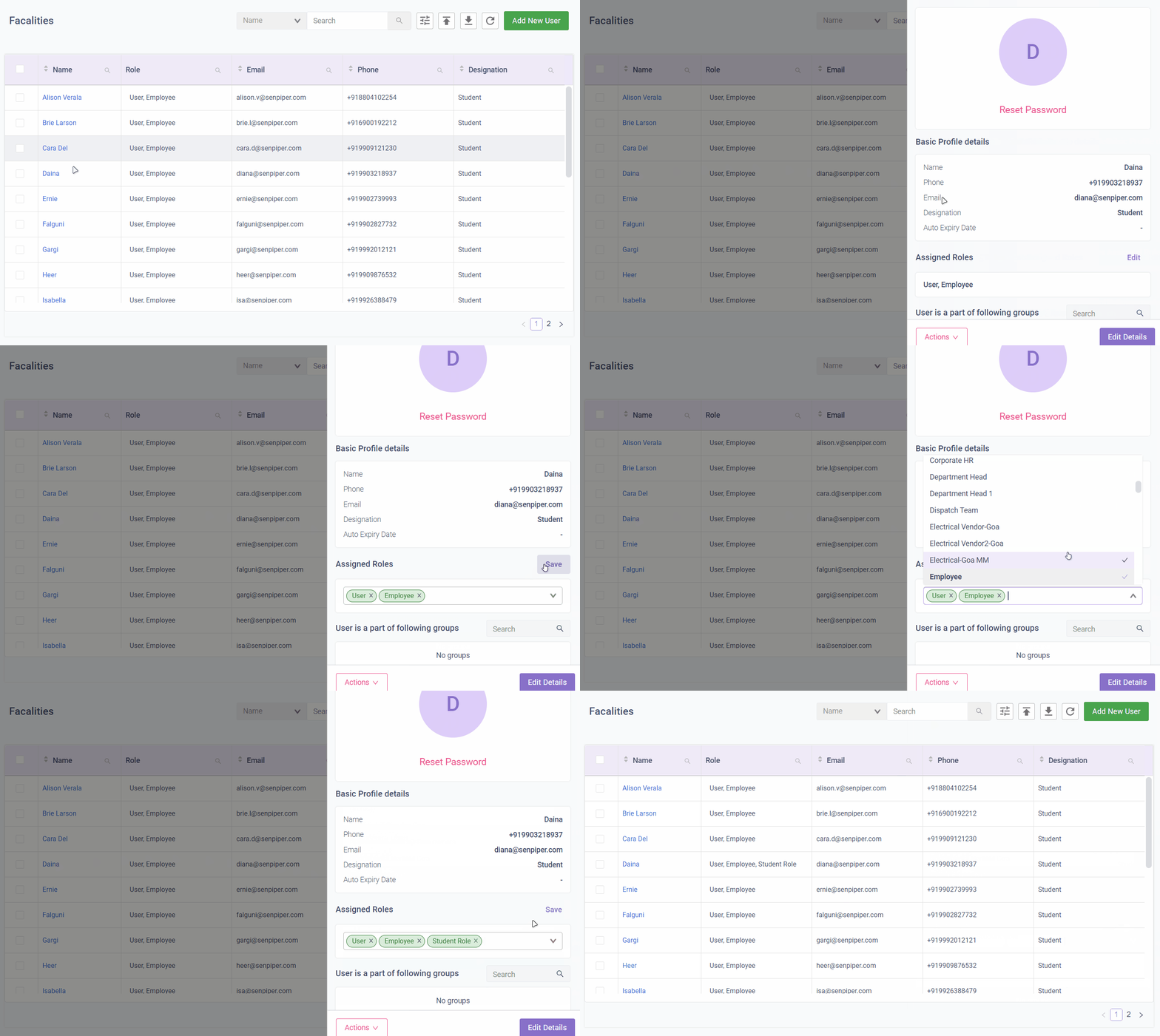
The **profile details** of the user are displayed.
User Profile Details
## Profile Details
As you can see, the **Profile Details** screen gives you information on 4 important aspects of the user:
| Aspect | Description |
| ---------------------------------- | ------------------------------------------------------------------------------------------------------------------------------------------------------------------------------------------------------------------ |
| Basic Profile details | This shows the details of various parameters of the user |
| System Admin Rights |
This shows if the user has System Admin Rights
If the Provide system admin rights toggle switch is on, then it means that the user has System Admin Rights
|
| Assigned Roles | This shows the roles, if any, assigned to the user |
| User is a part of following groups | This shows the groups, if any, that the user belongs to |
# Searching users
## Quick search
This feature allows you to search a user based on their specific parameter.
To quick search for a specific user,
1\. From the **Studio** dropdown list in the menu bar, click **Manage users**. The **User Lists** screen is displayed.
2\. From **User Lists**, select the user list name from which you want to search for the user.
3\. In the parameter dropdown, select the parameter by which you want to search the user.

Let's say we want to search for the user by their email address. So we will select **Email** as the search parameter.
4\. In the **Search** field, enter the value of the parameter selected in step 3 and then click . \
Since we selected email as the parameter, we will enter the email address of the user in the **Search** field.
The user with the entered value for the parameter is displayed in the user list.
Search Users by email
## Search using filter
This feature allows you to search for users based on a condition.
To search users based on a condition,
1\. From the **Studio** dropdown list in the menu bar, click **Manage users**. The **User Lists** screen is displayed.
Filter option
2\. From **User Lists**, select the user list name from which you want to search for the user.
3\. To insert a condition to search the user, on the top right of the screen, click . The **Choose Filter** screen is displayed.
4\. To select the parameter(s) based on which you want to add a condition, click **Select Fields**. The list of parameters is displayed.
5\. From the list of parameters, select one or more parameters based on which you want to add a
condition and then, at the bottom of the parameter list, click **Apply**.
> Let's say we want to add a condition based on 1 parameter, **Name** to search the user. Thus we have selected **Name** from the list of parameters as shown in the above image.
The selected parameter are displayed on the **Choose Filter** screen.
6\. For a given parameter, click **Select operator and value** and then click **Select operator**.
> Let's say for the **Name** parameter, we select the operator **CONTAINS**. On selection of the operator, a text field is displayed.
7\. In the text field, enter the value that the parameter in the user list is to be compared with and then at the bottom right of the **Choose Filter** screen, click **Apply**.
> Let's say we enter the value as '**a'** as given below.
Filter Users
The user(s) that satisfy the conditions added for the parameters are displayed in the user list.
Filtered Users
# Downloading user lists
The **One Resource** platform gives you the option to download a user list with all of its users and their details as an MS Excel file.
To download user lists,
1\. From the **Studio** dropdown list in the menu bar, click **Manage users**. The **User Lists** screen is displayed.
Download user list option
2\. In the left pane, under **User Lists,** select the required user list and then to download the selected user list, in the right pane, on the top right, click . The **Download Data** screen is displayed.
3\. From the **Select Fields** dropdown, select the parameters that you want to be displayed in the downloaded MS Excel file.
> As you can see in the above image, we have selected **All fields**. This means all the parameters of the users in the user list will be displayed in the downloaded MS Excel file.
4\. At the bottom right of the **Download Data** screen, click **Download**. The selected user list is downloaded to your device as an MS Excel file.
Download user list
# Delegating tasks
The **System Admin** has the authority to shift responsibility from one user to another, that is, to delegate tasks from one user to another. For instance, a user has five pending tasks but is not available to complete them, the **System Admin** can delegate those tasks to another user.
In order to delegate tasks,
1\. From the menu bar, click **Manage users**. The **User Lists** screen is displayed.
2\. From the left pane select the required user list to which the concerned user belongs. The list of users in the selected user list is displayed in the right pane.
3\. Click on the name of the concerned user. The profile details of the user are displayed.
4\. From the **More Actions** dropdown list, select **Delegate tasks to another user**.
More Options For User profile
The **Delegate tasks to another user** window is displayed.
Delegate Tasks
5\. From the options provided, select the type of task that needs to be delegated and then click **Next**.
Task
Description
Task
Description
All tasks
Select this is you want to delegate all the tasks of the selected user to another user
For Selected Groups
Select this if you want to assign the tasks that belong to a specific group to another user
On selection, you will be asked to select the group to which the tasks belong
For Selected Forms
Select this if you want to assign the tasks for specific forms to another user
On selection, you will be asked to select the form associated with the task
6\. Select the user list and then select the user(s) to whom you want to delegate the task.
7\. To delegate the tasks to the selected user, on the bottom right of the **Delegate tasks to another user screen**, click **Assign Tasks** and then in the **Confirm task assignment** window, click **Confirm**.
Delegate Tasks
The selected tasks will be assigned to selected users.
# Viewing the change log of a user profile
To access the log of the changes made to the user profile,
1\. From the menu bar, click **Manage users**. The **User Lists** screen is displayed.
2\. From the left pane select the required user list to which the concerned user belongs. The list of users in the selected user list is displayed in the right pane.
3\. Click on the name of the concerned user. The profile details of the user are displayed.
4\. From the **More Actions** dropdown list, select **View History**.
All the details of the changes made to user profile with respect to what changes were made, who made them and at what time are displayed as shown below.
View History of a user
If no changes have been made in the user's profile details, then an empty screen is displayed as shown below.
Empty Profile History
# Editing users
To edit a user's details,
1\. From the **Studio** dropdown list in the menu bar, click **Manage users**. The **User Lists** screen is displayed.
2\. From **User Lists**, select the user list name in the user whose details you want to edit is located.
3\. Click on the name of the concerned user. The profile details of the user are displayed.
4\. To edit the user details, at the bottom right of the **Profile Details** screen, click **Edit Details**.\
The **Edit User Details** screen is displayed.

5\. Update the required details and click **Save User**. For more information, see [**How to create users?**](/user-management/managing-users/user-lists/how-to-create-users). The confirmation box is displayed.
6\. To save the changes made to the user details, click **Save**. The updated details are saved in the system.
# Deleting users
To delete a user,
1\. From the **Studio** dropdown list in the menu bar, click **Manage users**. The **User Lists** screen is displayed.
2\. From **User Lists**, select the user list name in which the user to be deleted is located. All the users that belong to the selected user list are displayed in the right pane.
3\. Click on the name of the concerned user. The profile details of the user are displayed.
4\. To delete the selected user, from the **More actions** dropdown list, select **Delete User**.
More Options
5\. To delete the selected user, in the confirmation box, click **Delete**.
Delete User
The user is deleted successfully and will no longer appear in the user list.
# Blocking users
1\. From the menu bar, click **Manage users**. The **User Lists** screen is displayed.
2\. From the left pane select the required user list to which the concerned user belongs. The list of users in the selected user list is displayed in the right pane.
3\. Click on the name of the concerned user. The profile details of the user are displayed.
BLock user
4\. On the bottom left of the **Profile Details** screen, click **Block User**.
Block user
The selected user is blocked successfully.
{% hint style="info" %}
Once a user is blocked, they cannot log in to the **One Resource** platform.
{% endhint %}
Blocked user profile
# Unblocking users
To unblock a user,
1\. From the menu bar, click **Manage users**. The **User Lists** screen is displayed.
2\. From the left pane select the required user list to which the concerned user belongs. The list of users in the selected user list is displayed in the right pane.
3\. Click on the name of the concerned user. The profile details of the user are displayed.
4\. On the bottom left of the **Profile Details** screen, click on **More options** & select **Unblock User**.
Unblock user
The selected user is unblocked successfully.
{% hint style="info" %}
Once a blocked user is unblocked, they can log in to the **One Resource** platform. The user will regain the properties and permissions that were assigned to them before they were blocked.
{% endhint %}
# Unlocking user
### How any user is locked?
While trying to log into any company, the user might enter the wrong password multiple times and click on the log in button. If the number of entering the wrong password exceeds the acceptable number set in the company settings, then the user is locked.
### Who can unlock the user?
Only the user with company admin rights can unlock the user.
### How the user can be unlocked?
There are two ways to unlock the user:
1. If the company has [**Reset password** settings](/general-system-settings/authentication-settings/password-settings) configured then the locked user will see **Reset Password** button on the locked screen message as shown in the above image. Clicking on the Reset password button, the locked user will be able to reset the password.
2. If the company doesn't have Reset password settings configured, then the company admin can unlock the user.
### How the System admin can unlock the user?
The System admin can unlock the user using these simple steps:
1. The System admin clicks on **Manage users** under the **Studio** tab.
2. The System admin clicks on the user list in which the locked user exists. All the user of that user list are displayed in the table format on the right side.
3. The System admin search for the locked user using the [Search User](/user-management/managing-users/more-actions/searching-users) functionality.
4. The System admin clicks on the locked user to open its [profile details](/user-management/managing-users/more-actions/viewing-users).
5. In the locked user profile details, the System admin clicks on **Actions button** and select the option **Unlock User** from it**.**
Locked user profile details page
6\. Clicking on the **Unlock User** option unlocks the user.
# Granting permissions to users
If you are a **System Admin** or the **System Admin** has provided you with **System Admin** rights, you can restrict access to users by assigning permissions to a role and assigning that role to a user.
The permissions to roles can be modified from the backend using APIs. Please reach out to our **Solutions** team for assistance.
If you are a **System Admin**, you can provide **System Admin rights** to other users by enabling the **Provide system admin rights** toggle switch in the [**Profile Details**](/user-management/managing-users/more-actions/viewing-users#profile-details) pane.

# Managing custom roles
Roles are assigned to users to manage their actions and control user activity through permissions.
Rather than assigning individual permissions directly to each user, permissions are grouped into roles. The **One Resource** platform provides certain default roles. However, if these roles do not describe the required set of privileges, then you can **customize new roles** as per the need of your application.
**Multiple roles can be assigned** to a single user. The user inherits the permissions from all the roles assigned to them.
{% hint style="info" %}
Only a **System Admin** can take actions pertaining to custom roles. However, they can grant **System Admin** rights to other users, in turn granting them permission to take actions pertaining to custom roles.
{% endhint %}
# Creating roles
{% hint style="info" %}
Only a **System Admin** can take actions pertaining to custom roles. However, they can grant **System Admin** rights to other users, in turn granting them permission to take actions pertaining to custom roles.
{% endhint %}
To create a role,
1\. From the menu bar, in the **Studio** dropdown list, click **Manage users**. The **User Lists** screen is displayed.
Naviagte to manage users
2\. At the bottom of the left pane, click **Add New**.
3\. From the menu, select **Role**. The **Add a new role** box is displayed.
Create Role
4\. In the **Enter a new role** text field, enter a title for the role and click **Add**.\
The new role is saved.
{% hint style="success" %}
We have successfully created the role **Student** and saved it to the system. Can you create the following roles in a similar manner?
* Manager
* Finance Team
* Finance Head
{% endhint %}
# Assigning custom roles to users
Only a **Super Admin** can restrict access to users by assigning permissions to a role and assigning that role to a user. For instance, they can limit a user to only view other users, but not allow to edit or download any user data.
To assign a role to the user,
1\. From the menu bar, click **Manage users**. The **User Lists** screen is displayed.
2\. From **User Lists**, select the user list name to which the concerned user belongs.
3\. Click on the name of the concerned user. The profile details of the user are displayed.
4\. To assign a role to the user, go to **Assigned Roles**, and click **Edit**.
Assigned Roles to this user
The list of roles is displayed in the dropdown menu.
5\. Select the role(s) that you want to assign to the user from the list and click **Save**.
Assign Role to User
{% hint style="info" %}
You can select multiple roles for the user, if required.
{% endhint %}
# Removing custom roles from users
{% hint style="info" %}
Only a **System Admin** can take actions pertaining to custom roles. However, they can grant **System Admin** rights to other users, in turn granting them permission to take actions pertaining to custom roles.
{% endhint %}
To assign a role to the user,
1\. From the menu bar, click **Manage users**. The **User Lists** screen is displayed.
2\. From **User Lists**, select the user list name to which the concerned user belongs.
3\. Click on the name of the concerned user. The profile details of the user are displayed.
4\. To remove a role that is assigned to the user, go to **Assigned Roles**, and click **Edit**.
You can now view the roles that are assigned to the user in edit mode. These roles are displayed with an **x** against them indicating they can be deleted.
Remove Assiged Role of the user
5\. To remove a role assigned to the user, under **Assigned Roles**, against the role that is to be removed, click **x** and then click **Save.**
As you can see in the above image, we have removed the role, **Manager** for the user, **John Smith**.
# Granting permissions to roles
If you are a **System Admin** or the **System Admin** has provided you with **System Admin** rights, you can restrict access to users by assigning permissions to a role and assigning that role to a user.
The permissions to roles can be modified from the backend using APIs. Please reach out to our **Solutions** team for assistance.
# Roles and Users for the Reimbursement Use Case
See the [***Overview***](/workflow-builder/introduction/overview) for the **Reimbursement** use case.
As described in the **Reimbursement** workflow, we need to create 4 roles for the different levels of approval.
| Step no. | Role | Description |
| -------- | --------------- | ---------------- |
| 2 | Manager | Level 1 approver |
| 3 | Department Head | Level 2 approver |
| 4 | Finance Team | Level 3 approver |
| 5 | Finance Head | Level 4 approver |
We will learn to create how to [**create these roles**](/user-management/managing-user-roles/creating-roles) in the subsequent sections.
These roles need to be assigned to users. So, we will also learn to [**create these users**](/user-management/managing-users/user-lists/how-to-create-users) and [**assign roles to them**](/user-management/managing-user-roles/assigning-custom-roles-to-users).
For instance, we will create a user named **John Smith** and assign them the role of **Department Head**. For more details, see [**Assigning custom roles to users**](/user-management/managing-user-roles/assigning-custom-roles-to-users).
# Introduction
## What is a form?
A **form is a database where you can capture information about a business process**. This platform provides a UI where you can drag and drop fields and apply logic to create and edit your forms.
## What does a form builder do?
**One Resource's From Builder** tool lets you:
* **Create personalized forms** specific to your business process without any coding knowledge
* **Design forms with ease** using its **user-friendly interface** and the **drag & drop** functionality
* **Collect data efficiently** from the users with the help of around **25 field types,** each of which has customizable properties
* Easily **validate the inputs** received from the respondents to avoid duplications and redundancies.
* **Simplify complex forms** by grouping relevant fields into one section
## Who can create forms?
Forms can be created by the:
* [**System Admin**](/user-management/managing-users/more-actions/tbd)
* [**Super-Admin** ](/groups-applications/managing-group-members/types-of-group-members)
* [**Users with System Admin rights**](/user-management/managing-users/more-actions/tbd)
## What are draft forms?
Forms are saved as drafts when the **One Resource** application shuts down unexpectedly while you are creating/editing the forms. This could be due to accidentally closing tabs or quitting browsers, system crashes, network problems and so on.
You can view the drafted forms on the **Form Builder** homepage.

{% hint style="info" %}
**Note**: Only the last three opened forms are drafted. So, you will not see any forms that were accessed prior to the last 3 opened forms in the list of drafted forms.
{% endhint %}
# How to create forms?
Forms can be created by the:
* [**System Admin**](/user-management/managing-users/more-actions/tbd)
* [**Super-Admin** ](/groups-applications/managing-group-members/types-of-group-members)
* [**Users with System Admin rights**](/user-management/managing-users/more-actions/tbd)
Creating forms involves configuring 3 types for details for the form:
1. [**Entering the basic details**](#1.-basic-details)
2. [**Adding fields and their individual details**](#2.-build)
3. [**Configuring additional settings for the form fields, the layout, page load behavior and so on**](#3.-settings)**.**
## How to navigate to the Form Builder tool?
To create forms,
From the **Studio** dropdown-list, click **Create forms**.

You are navigated to the [**Basic details** ](/form-builder/creating-forms/basic-settings)tab.

## What are the components of the Form Builder user interface?
### 1. Basic details

In the **Basic details** tab, you are asked to enter a name for the form and its group details, configure form modification/deletion settings, and set up dependency relationships with other forms.
### 2. Build

In the **Build** tab, you can add fields to the form and configure their individual settings. This tab will determine how your form will look like to the end user.
### 3. Settings

In the **Settings** tab, you can configure additional settings for the form with respect to conditional logic for fields, customizing the layout and the table view of the form, page load behaviors and so on.
# Basic details
The basic details of the form consist of five parts as shown below:

## 1. General settings

| **Field** | **Description** |
| -------------------- | ------------------------------------------------------------------------------------------------------ |
| Select Group\* | From the dropdown-list, select the group to which you want to add the form |
| Form Name\* | Enter a name for your form |
| Add Form Description |
Enter a short description for the form This will be displayed under the form title.
|
{% hint style="warning" %}
The fields **Select Group** and **Form Name** are mandatory. A form cannot be created without entering values for these fields.
{% endhint %}
## 2. Form update and delete settings

| Field | Description |
| --------------------------------------------------- | ------------------------------------------------------------------------------------------------------------------------------------------------------------------------------------------- |
| Form entries **can be updated** after submission | Turn on this toggle switch if you want to allow the user to edit the entries after the form is submitted |
| Form entries **cannot be deleted** after submission | Turn on this toggle switch if you want to prohibit the deletion of entries after submitting the form |
| Visible only to group admins and super-admins | Turn on this toggle switch if you want to restrict the access of the form to only group admins and super admins |
| Enable system only submissions | Turn on this toggle switch if you want the system to create submissions of the form automatically based on the workflow configuration. The users can't manually submit these type of forms. |
## 3. Language settings
Field
Select language to be applied
Select the language in which you want to display the title of this form
Provide form name in other languages configured for this form
Here you can give the desired title in the selected language.
example:
अदायगी
if the selected language is Hindi for the form "Reimbursement".
1. The given title in the selected language will appear only when the user system language is in the selected language. Example: The title अदायगी will appear when the user system language is Hindi, else the form title will be rendered in English.
2. The form title can be configured in more than one language.
To know more about language settings, see [**Language settings for fields**](/form-builder/creating-forms/adding-fields-and-saving-a-form/language-settings-for-fields).
## 4. Master data settings
| Field | Description |
| --------------------------------------------------- | -------------------------------------------------------------------------- |
| Use form submissions as master data for other forms | This option helps to create the current form answers as master data |
| Apply master data to this form | This option helps to use master form data to fill in the current form data |
Master records act as a source dataset in a process. (e.g. we need to have a drop-down of cities across multiple forms, So instead of asking user to fill cities manually every time in each form, we can create a master dataset of cities that can be used in different forms across the system.)
To know more about master data settings, see [**Master settings for fields**](/form-builder/creating-forms/adding-fields-and-saving-a-form/creating-master-records) and [**Master data settings**](broken://pages/VJNjCQOW7EE1svCBtIUC).
## 5. Parent child relationship settings
| Field | Description |
| -------------------------------------- | ---------------------------------------------------------------------------------------------------------------------- |
| Use form as a parent to other forms | This toggle helps to set the form in consideration as a parent form |
| Use this form as a child to other form | This toggle helps to set the form in consideration as a child form to an already created parent form in the same group |

To understand the use cases, see [**Parent-child form settings**](/form-builder/advanced-concepts/parent-child-form-settings).
## 6. Keep form submissions unique
| | |
| -------------------------------------------------------------------------- | ------------------------------------------------------------------------------------------------------------------------------------------------------------------------------------------------------------------------------------------------------------------------------------------------------------------------------------------------------------------------------------------------------------------------------------------------------------------------------------------------------------------------------------------------------------------------------------------------------ |
| **Field** | **Description** |
| Enable the uniqueness check |
This setting ensures that the selected field has unique value in every form submission. No two submissions can have same value for the selected field/s.
|
| Select field which will act as unique value for all submissions | Select the field for which you want to ensure unique value in every submission |
| What should be the behavior if a new submission is uploaded with same data |
If a new form submission is created with duplicate value for the selected field, then what should be the desired acton that system should take.
List of actions to be taken if the value submitted for the field is not unique:
Discard new submission – The new submission for the field will be removed, and the old submission will be retained
Override previous submission – The old submission will for the field will be removed, and the new submission will be retained
Throw an error – An error message will be displayed to the user
|
The uniqueness feature ensures that there is no duplication of any field values. For a given field, it restricts a user from submitting a value that already exists in the data from the previous submissions made to the form.
**Important**: The uniqueness check will apply to bulk submissions (submissions via uploading an excel) as well.
# Adding fields and saving a form
{% hint style="warning" %}
A form cannot be created without adding at least one field to the form.
{% endhint %}
To add fields to a form,
1\. In the **Build** tab, from the left pane, click on the category of fields from which you want to add the field to the form.
For instance, if you want to add a textbox field to the form, you must click on the category, **Basic Fields**.

The fields belonging to the selected category are displayed. Since we had selected the **Basic Fields** category, the fields under the **Basic Fields** category are displayed.
2\. To add a field to the form, either click on the required field or drag the field and drop it on the right pane.

The selected field is displayed in the right pane.

3\. To configure settings for the selected field, on the right of added field, click .
The general settings for the selected field are displayed.

4\. Enter the required details and then on the bottom right of the screen, click **Apply**.
{% hint style="warning" %}
**Field Name** is a mandatory field. The field will not be added to the form if you do not provide a name for the field. For more information on field settings see [**Default field settings**](/form-builder/creating-forms/adding-fields-and-saving-a-form/default-field-settings) and [**Individual field settings**](/form-builder/creating-forms/adding-fields-and-saving-a-form/individual-field-settings).
{% endhint %}
The field is added to the form and the settings are configured.

{% hint style="info" %}
To add more fields to the form, **repeat the steps 1 through 4**.
{% endhint %}
{% hint style="success" %}
[**Section** ](https://docs.senpiper.com/form-builder/creating-forms/pages/-MlTKz6Y8xUCmZEa9lxP#10.-section)fields are added to the form in a similar manner as described above. You can drag individual fields and drop them into the section. A **Section** field cannot be created without adding at least one field into the section.
{% endhint %}

5\. To rearrange the order of fields in the form, drag the required field and drop it on the desired position.

As you can see in the above image, we will drag and drop the field, **Expense** per day right below the field, **Age**.

6\. To save the settings and to create the form, at the bottom right of the screen, click **Create Form/Update Form**.
The confirmation dialog box appears.

6\. In the confirmation dialog box, click **Confirm**.
The selected field(s) are added to the form and the form is saved.
# Types of fields
Building forms involves adding fields to a form and configuring their properties specific to your business needs. Fields are building blocks of a form that enable you to collect data from the user who is filling in the details.
There are various field types that collect this user data in different types of formats:
## Basic Fields
### 1. Textbox
The **Textbox** field allows the users to enter values in a string (text, numbers or special characters) format.
For example, the textbox can be used to record somebody's name, address and suchlike fields.
Check out the [**default**](/form-builder/creating-forms/adding-fields-and-saving-a-form/default-field-settings), [**individual** ](/form-builder/creating-forms/adding-fields-and-saving-a-form/individual-field-settings#text-box)and [**master** ](/form-builder/creating-forms/adding-fields-and-saving-a-form/creating-master-records)field settings for the textbox field.

### 2. Number
The **Number** field allows users to enter numeric values only.
For example, the number field can be used for age, amount and suchlike fields, or fields that require calculation.
Check out the [**default**](/form-builder/creating-forms/adding-fields-and-saving-a-form/default-field-settings) and [**master** ](/form-builder/creating-forms/adding-fields-and-saving-a-form/creating-master-records)field settings for the number field.

### 3. Select
The Select field allows users to choose a single item from a list of options.
Select fields are used when you want the user to select one option from a pre-defined list of options.
For example, the select field titled "Country" has pre-defined options "India, USA, Germany, Canada, Amsterdam" and the user just selects "India" as the field answer and submits the form.
Check out the [**default**](/form-builder/creating-forms/adding-fields-and-saving-a-form/default-field-settings), [**individual** ](/form-builder/creating-forms/adding-fields-and-saving-a-form/individual-field-settings#select-multiselect)and [**master** ](/form-builder/creating-forms/adding-fields-and-saving-a-form/creating-master-records)field settings for the select field.

### 4. Multiselect
The **Multiselect** field allows users to choose multiple items from a list of options.
Multiselect fields are used when you want the user to select multiple options from a pre-defined list of options.
For example, the multi select field titled "Country" has pre-defined options "India, USA, Germany, Canada, Amsterdam" and the user selects "India" and "USA" as the field answer and submits the form.
Check out the [**default**](/form-builder/creating-forms/adding-fields-and-saving-a-form/default-field-settings), [**individual** ](/form-builder/creating-forms/adding-fields-and-saving-a-form/individual-field-settings#select-multiselect)and [**master** ](/form-builder/creating-forms/adding-fields-and-saving-a-form/creating-master-records)field settings for the multi select field.

### 5. Email
The **Email** field allows users to enter a valid email address. It validates the email address by checking if it includes an @ and . as characters.
Check out the [**default** ](/form-builder/creating-forms/adding-fields-and-saving-a-form/default-field-settings)and [**master** ](/form-builder/creating-forms/adding-fields-and-saving-a-form/creating-master-records)field settings for the email field.

### 6. Phone
The **Phone** field allows users to enter a valid phone number. The accepted field value is country-specific. For example, Indian phone numbers have 10 digits. So, if the Indian flag is chosen (as shown below) then the set validation for the phone field is 10 digits by default.
Check out the [**default** ](/form-builder/creating-forms/adding-fields-and-saving-a-form/default-field-settings)and [**master** ](/form-builder/creating-forms/adding-fields-and-saving-a-form/creating-master-records)field settings for the phone field.

### 7. Radio
The **Radio** field allows users to select a single item from pre-defined options. It is similar to the "Select" field with a different layout.
Check out the [**default** ](/form-builder/creating-forms/adding-fields-and-saving-a-form/default-field-settings)and [**individual** ](/form-builder/creating-forms/adding-fields-and-saving-a-form/individual-field-settings#radio-status-priority)field settings for the radio field.

### 8. Date
The **Date** field allows the user to enter/select the date in a specified format.
Check out the [**default** ](/form-builder/creating-forms/adding-fields-and-saving-a-form/default-field-settings)and [**individual** ](/form-builder/creating-forms/adding-fields-and-saving-a-form/individual-field-settings#date)field settings for the date field.

### 9. Location
The **Location** field helps to record the current location of the submitter of the form.
This can be manually picked by the user (if chosen in field settings) or auto-picked by the system.
Check out the [**default** ](/form-builder/creating-forms/adding-fields-and-saving-a-form/default-field-settings)and [**individual** ](/form-builder/creating-forms/adding-fields-and-saving-a-form/individual-field-settings#location)field settings for the location field.

### 10. Geo-Fence
The **Geo-Fence** field is a special type of location field where the form creator wants to set the perimeter around a selected location.
The perimeter details are recorded as the Geo-Fence field value. To fill the value in the field, the user drops the pin at the desired location and defines the perimeter as a circle/polygon/line.
This field is crucial to validate the form submitter's location which means that the form creator wants to make sure that the form submitter's current location should fall within the perimeter as defined in the Geo-Fence field value.
Check out the [**default** ](/form-builder/creating-forms/adding-fields-and-saving-a-form/default-field-settings)and [**individual** ](/form-builder/creating-forms/adding-fields-and-saving-a-form/individual-field-settings#location)field settings for the Geo-Fence field.
### 10. Section
The **Section** field groups together fields and acts like a sub-form within a form. This is generally used when you want to group similar or related information.
For instance, if we want to create the **Address** field, we can group all the details (Street name, City, Zip code) into one section.
Check out the [**default** ](/form-builder/creating-forms/adding-fields-and-saving-a-form/default-field-settings)and [**individual** ](/form-builder/creating-forms/adding-fields-and-saving-a-form/individual-field-settings#section)field settings for the section field.

### 11. Label
The **Label** field is used to display text on the form.
As the name suggests, the label field serves as a label for the required part of the form.
Check out the [**default** ](/form-builder/creating-forms/adding-fields-and-saving-a-form/default-field-settings)field settings for the label field.

### 12. Rating
The **Rating** field allows users to provide feedback to your form as a star rating.
Check out the [**default** ](/form-builder/creating-forms/adding-fields-and-saving-a-form/default-field-settings)and [**individual** ](/form-builder/creating-forms/adding-fields-and-saving-a-form/individual-field-settings#rating-slider)field settings for the rating field.

### 13. Slider
The Slider field allows users to drag a handle to select a number from a defined range of numbers (1 to 10).
For example, the slider field can be used to ask rating from the user about a certain aspect.
Check out the [**default** ](/form-builder/creating-forms/adding-fields-and-saving-a-form/default-field-settings)and [**individual** ](/form-builder/creating-forms/adding-fields-and-saving-a-form/individual-field-settings#rating-slider)field settings for the slider field.

### 14. Rich text field
The rich text field displays a text area with various editing and formatting options. The user can enter, edit and format text with unlimited characters.
Check out the [**default** ](/form-builder/creating-forms/adding-fields-and-saving-a-form/default-field-settings)field settings for the rich text field.

## Multimedia Fields
### 1. Image
The **Image** field allows users to upload image files of sizes up to 10 MB. Acceptable formats are JPG, JPEG, BMP, SVG, GIF, PNG and TIFF.
The image files can be uploaded from the device, dragged and dropped, or copied and pasted in the form.
Check out the [**default** ](/form-builder/creating-forms/adding-fields-and-saving-a-form/default-field-settings)and [**individual** ](/form-builder/creating-forms/adding-fields-and-saving-a-form/individual-field-settings#image)settings for the image field.

### 2. Video
The **Video** field allows users to upload video files of sizes up to 26 MB. Acceptable formats are WEBM, MP4, MPG, OGG, MOV, AVI, FLV, M2V, and M4V.
The video files can be uploaded from the device, dragged and dropped, or copied and pasted in the form.
Check out the [**default** ](/form-builder/creating-forms/adding-fields-and-saving-a-form/default-field-settings)and [**individual** ](/form-builder/creating-forms/adding-fields-and-saving-a-form/individual-field-settings#video)field settings for the video field.

### 3. Document
The Document field allows users to upload document files of sizes up to 105 MB.
Check out the [**default** ](/form-builder/creating-forms/adding-fields-and-saving-a-form/default-field-settings)and [**individual** ](/form-builder/creating-forms/adding-fields-and-saving-a-form/individual-field-settings#document)field settings for the document field.

### 4. Canvas
The **Canvas** field allows the user to write in the field with the help of a mouse. If the user's device is a touch screen, then they can write with the help of a stylus or finger by dragging it along the screen and positioning it accordingly.
For example, the canvas field can be used for taking electronic signatures from the user.
Check out the [**default**](/form-builder/creating-forms/adding-fields-and-saving-a-form/default-field-settings) field settings for the canvas field.

### 5. Audio
The **Audio** field allows users to upload audio files of sizes up to 26 MB. Acceptable formats are MP3, MP4, and WAV.
Check out the [**default** ](/form-builder/creating-forms/adding-fields-and-saving-a-form/default-field-settings)and [**individual** ](/form-builder/creating-forms/adding-fields-and-saving-a-form/individual-field-settings#audio)field settings for the audio field.

## Advanced Fields
### 1. Status
The **Status** field is used when a form is attached to a workflow to track its progress (determine the current stage of the workflow).
{% hint style="info" %}
The **Status** field will appear like a simple dropdown on the form if it is not attached to a [workflow](/workflow-builder/introduction).
{% endhint %}
Check out the [**default** ](/form-builder/creating-forms/adding-fields-and-saving-a-form/default-field-settings)field settings for the status field.

### 2*.* Priority
The **Priority** field indicates the importance of a process.
It is a select field with a pre-defined title Priority with a specific use case. The user can create desired options for the field, for example, it can be High, Medium, Low.
Check out the [**default** ](/form-builder/creating-forms/adding-fields-and-saving-a-form/default-field-settings)field settings for the priority field.

### 3. QR Code
The **QR Code** field allows the users to scan and read a QR code through the mobile application.
Check out the [**default**](/form-builder/creating-forms/adding-fields-and-saving-a-form/default-field-settings) and [**master** ](/form-builder/creating-forms/adding-fields-and-saving-a-form/creating-master-records)field settings for the QR Code field.

### 4. Bar Code
The **Bar Code** field allows the users to scan and read a bar code through the mobile application.
Check out the [**default**](/form-builder/creating-forms/adding-fields-and-saving-a-form/default-field-settings) and [**master** ](/form-builder/creating-forms/adding-fields-and-saving-a-form/creating-master-records)field settings for the Bar Code field.

## Group member fields
### 1. @Select
The **@Select** field is used to tag a single user in the form.
This is a select field where options will be the members of the group in which this form exists.
Check out the [**default** ](/form-builder/creating-forms/adding-fields-and-saving-a-form/default-field-settings)field settings for the @Select field.

### 2. @Multiselect
The **@Multiselect** is used to tag multiple users in the form.
This is a multi-select field where options will be the members of the group in which this form exists.
Check out the [**default** ](/form-builder/creating-forms/adding-fields-and-saving-a-form/default-field-settings)field settings for the @Multiselect field.

# Default field settings
The default field settings are the basic settings of any field that determine how the field will be displayed and behave when the form is set up. These settings are common to all fields.
Clicking on the settings icon will take the user to field settings

| | |
| ------------------------------------------------------ | --------------------------------------------------------------------------------------------------------------------------------------------------------------------------------------------------------------------------------------------------------------------------------------------------------------------------------------------------------------------------------------------------------------------------------------------------------------------------------------------------------------- |
| **Field** | **Description** |
| Field Name\* | Enter a name for the field |
| Description of the field | Enter a tooltip text that should appear when the mouse pointer hovers over the field |
| Edit settings |
make editable – Select this if you want to allow the user to enter/change the value for the field
mark readonly – Select this if you want to prevent the user from changing the value of the field
|
| Visibility settings |
Show to user – Select this if you want the field to be visible to the user at a particular step of the workflow
Hide from user – Select this if you want to hide this field from the user at a particular step of the workflow
Remove for now – Select this if you neither want to populate this field with any value nor show it to the user at a particular step of the workflow
This setting can be changed to Show to user/Hide from user at another step of the workflow
|
| Optionality settings |
mark field mandatory – Select this if you want the user to mandatorily enter a value for the field
keep field optional – Select this if you want to mark this field as optional and the user is not required to enter a value for the field
|
| Set any default answer |
Enter a default value that should appear when a user first opens the form
Whether this value can be edited or not depends on your Edit settings.
|
| Allow users to add multiple rows of data in this field |
Select this if you want to allow the user to make multiple data entries for the field
If selected, an Add another row button will be displayed for the field.
|
| Populate this field with self-user profile data |
Turn on this toggle switch if you want the field to be auto populated with the submitter’s name, email ID or phone number If you want to select other parameters from the user’s profile, please reach out to our Solutions team.
|
| This field should have autogenerated values |
Turn on this toggle switch if you want to autogenerate a value for the field in a defined format This value is generated by the system once the form is submitted and is not visible to the submitter while filling the form details
|
{% hint style="info" %}
The field title can also be given in **Please add title** that appears when you add a field as shown in the image at top of the page.
{% endhint %}
### The uses for the option ***Remove for now*** in ***optionality settings*****.**
1. The user setting up the form doesn't require the field now but may need it in the future. So, the user creates the field and configures all the field settings required and marks it as **Remove for now.** The user can always come back and set the field as **Visible** to make it part of the form.
2. The user setting up the form doesn't want to show the field to the user filling up the form but requires this at some workflow step in the **Edit form** ( the user taking action on a workflow step can edit the selected form field values). So, the user setting up the form creates a field and marks it **Remove for now** to make it part of the form but not visible to the user filling the form.
### Populate this field with self-user profile data
If the user turns on this toggle, then the field value will be fetched from the user profile details from a User list in **Manage Users.**
1. When the user turns on this toggle, the user is asked to choose the user list name which should be used.
{% hint style="info" %}
The user creating the form has to make sure that the users who will fill this form should be part of the selected user list.
{% endhint %}
2\. All the user profile parameters like Name, Phone, Email etc. in the selected user list are shown in the following dropdown. The user can select the desired parameter that should fill in this field.
# Individual field settings
## Text box
Check out the features of the textbox field [**here**](https://docs.senpiper.com/form-builder/creating-forms/adding-fields-and-saving-a-form/pages/-MlTKz6Y8xUCmZEa9lxP#1.-textbox)**.**
### Regex Validation
Regex validation helps you define a set of validation options for a given field.
It is used to perform validation checks with respect to length and format of the value that the user enters in a textbox field.
You can define validation rules by specifying custom validation regular expressions in this property.
For more information on regex validation, see [https://regexr.com/](https://regexr.com/)

| | |
| ------------------ | --------------------------------------------------------------------------------------------------------------- |
| **Field** | **Description** |
| Regex Validation | Enter the regular expression based on which you want to perform validation checks on a field |
| Validation Message | Enter the message that should be displayed if the value entered by the user does not pass the validation checks |
### Autogenerate values
You can set the textbox field to autogenerate values in a predefined format.

To define the values to be autogenerated in a textbox,
1\. Turn on the toggle switch for **This field should have autogenerated values**.
2\. To define the logic for the value to be autogenerated, click **Set Logic** and select the pattern accordingly.

There are 3 types of values that can be autogenerated:
#### Date
Includes today's date in a specified format with a suffix or a prefix in the autogenerated value

Setting
Description
Select type - Date
Select Date if you want to include today's date as a part of the autogenerated value
Add any prefix if required
Enter a value that you want to place before the date
Select date format
Select the format in which the date should appear in the autogenerated value
Add any suffix if required
Enter a value that you want to append after the date
#### Sequence
Includes a sequence of numbers in the specified length with a prefix or a suffix in the autogenerated value

| | |
| ----------------------------------- | ----------------------------------------------------------------------------------------------------- |
| Select type - **Sequence** | Select **Sequence** if you want to include a sequence of numbers as a part of the autogenerated value |
| Add any prefix if required | Enter a value that you want to place before the sequence of numbers |
| Length of the sequence | Enter the length of the sequence of numbers to be autogenerated |
| When this sequence should be reset? | Select the frequency for resetting the sequence of numbers |
| Add any suffix if required | Enter a value that you want to append after the sequence of numbers |
#### Expression
Includes values that are fetched from the backend using a JavaScript expression as a part of the autogenerated value

| Setting | Description |
| ---------------------------- | --------------------------------------------------------------------------------------------------------------------- |
| Select type - **Expression** | Select **Expression** if you want to fetch values from the backend as a part of the autogenerated value |
| Add any prefix if required | Enter a value that you want to place before the fetched value |
| Javascript expression | Enter the JavaScript expression that will fetch the value to be displayed in the autogenerated value from the backend |
| Add any suffix if required | Enter a value that you want to append after the after the fetched value |
## Select/Multiselect
Check out the features of the [**Select** ](https://docs.senpiper.com/form-builder/creating-forms/adding-fields-and-saving-a-form/pages/-MlTKz6Y8xUCmZEa9lxP#3.-select)and [**Multiselect** ](https://docs.senpiper.com/form-builder/creating-forms/adding-fields-and-saving-a-form/pages/-MlTKz6Y8xUCmZEa9lxP#4.-multiselect)fields.
For the **Select** and **Multiselect** fields, there are two ways by which you can add the options to be displayed in the list.
### 1. Manually entering the values for the list

| | |
| -------------------------------- | --------------------------------------------------------------------------------------------------------------------------------------------------------------------------------------------------------------------------------------------------------------------------------------------------------------------------------------------------------------------------------------------------------------------------------------------------------------------------------------------------------------------------------------------------------------------------------------------------------- |
| **Field** | **Description** |
| Add options in the select fields |
Add Single Option At A Time
To add the values to the list one by one,
Enter the value for the first option and then press enter.
Enter the value for the second option and so on.
You can go on adding options by entering the values and then hitting enter.
Add Multiple Options Together
To add multiple options together,
Click Add Multiple Options Together
Enter the values to be displayed in the list separated by a comma.
|
{% hint style="info" %}
**Note**: If you enter any duplicate values, they will be automatically discarded.
{% endhint %}
### 2. Fetching the values for the list from a master form

| | |
| ------------------------------------------------------ | ----------------------------------------------------------------------------------------------------------------------- |
| **Field** | **Description** |
| I want to pick options from a master form | Turn on this toggle switch if you want to fetch values for the list from a master form |
| Select the master form | Select the form from which you want to fetch values for this field |
| Select the field from which values should be populated | Select the field from the master form from which you want to fetch values that will displayed as options for this field |
For more information master settings, see [**Master settings for fields**](/form-builder/creating-forms/adding-fields-and-saving-a-form/creating-master-records) and [**Master data settings**](broken://pages/VJNjCQOW7EE1svCBtIUC).
## Radio/Status/Priority
Check out the features of the [**Radio**](https://docs.senpiper.com/form-builder/creating-forms/adding-fields-and-saving-a-form/pages/-MlTKz6Y8xUCmZEa9lxP#7.-radio), [**Status** ](https://docs.senpiper.com/form-builder/creating-forms/adding-fields-and-saving-a-form/pages/-MlTKz6Y8xUCmZEa9lxP#1.-status)and [**Priority** ](https://docs.senpiper.com/form-builder/creating-forms/adding-fields-and-saving-a-form/pages/-MlTKz6Y8xUCmZEa9lxP#2.-priority)fields.
For the **Radio**, **Status** and **Priority** fields, you can manually enter the values that should be displayed as options.

| | |
| -------------------------------- | -------------------------------------------------------------------------------------------------------------------------------------------------------------------------------------------------------------------------------------------------------------------------------------------------------------------------------------------------------------------------------------------------------------------------------------------------------------------------------------------------------------------------------------------------------------------------------------------------------- |
| **Field** | **Description** |
| Add options in the select fields |
Add Single Option At A Time
To add the values to the list one by one,
Enter the value for the first option and then press enter.
Enter the value for the second option and so on.
You can go on adding options by entering the values and then hitting enter.
Add Multiple Options Together
To add multiple options together,
Click Add Multiple Options Together
Enter the values to be displayed in the list separated by a comma.
|
## Date
Check out the features of the date field [**here**](https://docs.senpiper.com/form-builder/creating-forms/adding-fields-and-saving-a-form/pages/-MlTKz6Y8xUCmZEa9lxP#8.-date).

| | |
| ------------------------------------------ | ------------------------------------------------------------------------------------------------------------------------------------------------------------------------------------------------------------------------------------------------------------------------------------------------------------------------------------ |
| **Field** | **Description** |
| What values should this field capture? |
Capture only date – Select this if you want the field to accept only date as a value for this field
Capture only time – Select this if you want the field to accept only time as a value for this field
Capture both date and time – Select this if you want to accept both date and time as value for this field
|
| Select format for the date | This field automatically sets the format for the date/time to be displayed on the form based on your selection for the **What values should this field capture?** Field. |
| Automatically capture device date and time | Turn on this toggle switch if you want to auto-populate this field with the date and time of the device |
| Minimum date user can select in this field | Select a start date prior to which no date will be accepted in this field |
| Maximum date user can select in this field | Select an end date after which no date will be accepted in this field |
## Location
Check out the features of the location field [**here**](https://docs.senpiper.com/form-builder/creating-forms/adding-fields-and-saving-a-form/pages/-MlTKz6Y8xUCmZEa9lxP#9.-location).

| | |
| ------------------------------------- | -------------------------------------------------------------------------------------- |
| **Field** | **Description** |
| Allow location to get manually picked | Turn on this toggle switch if you want to allow the user to manually pick the location |
## Section
Check out the features of the section field [**here**](https://docs.senpiper.com/form-builder/creating-forms/adding-fields-and-saving-a-form/pages/-MlTKz6Y8xUCmZEa9lxP#10.-section).
Configure report to the section
Applying master data to the section
| | |
| ----------------------------------------------------- | ------------------------------------------------------------------------------------------------------------------------------------------------------------------------------------------------------------------------------------------------------------------------------------------------------------------------------------------------------- |
| **Field** | **Description** |
| Apply master | Turn on this toggle switch if you want to fetch values for the fields in the **Section** from a master form |
| Do you want to populate data in fields from a report? |
Turn on this toggle switch if you want to fetch values for the fields in the Section from a report
|
### Section data layout settings
You can configure the layout of the **Section** field as per your preference with the options given below:

| Field | Description |
| ------------------------------------------------------ | --------------------------------------------------------------------------------------------------------------------------------------------------------------------------------------------------------------------------------------------------- |
| Allow users to add multiple rows of data to this field |
Turn on this toggle switch if you want to allows the user to enter multiple data entries for the Section field
This will display an 'Add another row' button next to the field in the form.
|
| Define minimum values a user can add for this field | Enter the minimum number of data entries that you want to allow the user to make to this field |
| Define maximum values a user can add for this field | Enter the maximum number of data entries that you want to allow the user to make to this field |
| Provide name of 'add another row' button | Enter a different name for the **Add another row button**, if preferred |
### Section layout view settings
You can also configure the layout of the **Section** field in both **Web Browser** and **Mobile App** as per your preference with the options given below:

| Field | Description |
| ---------------- | --------------------------------------------------------------------------------------------------------------------------------------------------------------------------------------------------------------------------------------------------------------------------------------------------------------------------------------------------------------------------------------------------------------------------------------------------------------------- |
| Web Browser view |
Accordion view - Select this if you want to display the Section field data in an accordion format in your website
Table view - Select this if you want to display the Section field data in an table format in your website
|
| Mobile App view |
Accordion view- Select this if you want to display the Section field data in an accordion format in your mobile app
New page layout - Select this if you want to display the Section field content in a new page
|
Refer to the images below for more information on **Web Browser** and **Mobile App** views.
### Accordion view
An accordion view is a vertically stacked list of rows that can be clicked to reveal or hide content associated with them.
#### Accordion view in web browser

#### Accordion view in mobile app

### Table view in web browser
The table view displays content in the form of rows and columns.

### New page layout
A new page layout will vertically stack the data in a list of rows that can be clicked to direct you to a new page and reveal the content associated with them.

## Rating/Slider
Check out the features of the [**Rating** ](https://docs.senpiper.com/form-builder/creating-forms/adding-fields-and-saving-a-form/pages/-MlTKz6Y8xUCmZEa9lxP#12.-rating)and [**Slider** ](https://docs.senpiper.com/form-builder/creating-forms/adding-fields-and-saving-a-form/pages/-MlTKz6Y8xUCmZEa9lxP#13.-slider)fields.

| | |
| ------------------------------------------------- | ------------------------------------------------------------------------------------- |
| **Field** | **Description** |
| Minimum value of the slider that user can provide | Enter the minimum rating/number of stars that a user can select from the rating range |
| Maximum value of the slider that user can provide | Enter the maximum rating/number of stars that a user can select from the rating range |
## Multimedia fields
### Document
Check out the features of the document field [**here**](https://docs.senpiper.com/form-builder/creating-forms/adding-fields-and-saving-a-form/pages/-MlTKz6Y8xUCmZEa9lxP#3.-document).

| | |
| ------------------ | ------------------------------------------------------------------------------------------ |
| **Field** | **Description** |
| Enable Geo Tagging | Turn on this toggle switch if you want to automatically attach the geographic co-ordinates |
### Video
Check out the features of the video field [**here**](https://docs.senpiper.com/form-builder/creating-forms/adding-fields-and-saving-a-form/pages/-MlTKz6Y8xUCmZEa9lxP#2.-video).
| | |
| ----------------------------------------- | -------------------------------------------------------------------------------------------------------------------------------------------------------------------------------------------------- |
| **Field** | **Description** |
| Restrict upload of video from camera only |
Turn on this toggle switch if you want to restrict the user to upload videos shot with your device camera only The user will not be able to upload video files from their device gallery
|
### Image
Check out the features of the image field [**here**](https://docs.senpiper.com/form-builder/creating-forms/adding-fields-and-saving-a-form/pages/-MlTKz6Y8xUCmZEa9lxP#1.-image).
| | |
| -------------------------------------------------------------------------------------------------- | ---------------------------------------------------------------------------------------------------------------------------------------------------------------------------------------------------------------------------------------------------------------------------------------------------------------------------------------------------------------------------------- |
| **Field** | **Description** |
| Restrict upload of image from camera only |
Turn on this toggle switch if you want to restrict the user from uploading images clicked from your device camera only The user will not be able to upload image files from their device gallery
|
| Don't close the camera after an image is clicked |
Turn on this toggle switch if you don't want the camera to close after taking the picture. This feature helps in capturing multiple pictures using the same image field and storing the data in another field via predicates. For details, click here.
|
| Automatically delete images (captured via field) from the mobile device once the form is submitted |
Turn this toggle if you want to delete the clicked pictures using the image field of the form to be removed from the device's internal storage automatically. This is applicable only when the form is submitted successfully.
|

| Field | Description |
| -------------------------- | --------------------------------------------------------------------------------------------------------------------------------------- |
| Enable Geo Tagging | Turn on this toggle switch if you want to give the user the option to attach geographic co-ordinates to the image file |
| Make Geo Tagging Mandatory | Turn on this toggle switch if you want the user to mandatorily tag the geographical co-ordinates with the image |
| Keep Geo Tagging Optional | Turn on this toggle switch if you want to give the option to the user to choose not to tag the geographical co-ordinates with the image |
### Face Detection Settings
The Face detection settings are mainly used while applying the condition of [Face Matching](/form-builder/creating-forms/additional-form-settings/conditions).
The settings are visible under the Face Detection Settings tab when the user turns on the toggle **Enable only face capture through this field.**
| Setting | Description |
| ---------------------------------------------------------- | ------------------------------------------------------------------------------------------------------------------------------------------------------------------------------------------------------------------------------------------------------------------------------------------------------------------------------- |
| User must keep eyes open (both eyes) | This toggle detects both eyes open while capturing the image. |
| Show face tracker | This toggle tracks the face wherever it moves on the screen |
| Define minimum face to camera area ratio |
This helps to set the proportion of the screen that should be occupied by the face image while clicking. This is captured in percentage (percentage of the screen that should have face image)
|
| Do you want to keep liveliness mandatory? |
This toggle helps to detect the liveliness of the image that is being captured. There are some instructions from the backend that needs to be fulfilled while capturing the image or else the system doesn't allow the face. This feature helps to restrict the user from clicking a picture instead of a live image.
|
| Do you want to accept captured images with face mask on? | This allows users to capture and save mages with a face mask. |
| Enable system to generate unique Ids for the face captured |
If this toggle is turned on, then the system generates an encoding for the clicked image and saves it. The system uses this to match two images (both images should have encoding generated).
|
| Do you want to open the front camera as default | By default back camera opens for clicking via the image field, but this toggle enables the user to make the front camera default ( which is ideal for capturing faces) |
### Audio
Check out the features of the audio field [**here**](https://docs.senpiper.com/form-builder/creating-forms/adding-fields-and-saving-a-form/pages/-MlTKz6Y8xUCmZEa9lxP#5.-audio).

| | |
| ------------------------------------------- | ----------------------------------------------------------------------------------------------------------------------------------------------------------------------------------------------- |
| **Field** | **Description** |
| Restrict upload of audio from recorder only |
Turn on this toggle switch if you want to restrict the user to upload audios recorded from your device only The user will not be able to upload audio files from their device gallery
|
# Creating master records
Master records act as a database, the data entries from which can be used to populate certain fields in other forms, provided the master form is linked with those forms.
> For example, let's say we have a form called **Item Master** with a textbox field **Item name** which captures the names of the items that can be used for reimbursement. We have another form, **Reimbursement Form** that also has a textbox field **Name of the item** which captures the names of the items for which the users are seeking reimbursement.
>
> In this case, we can set **Item Master** as a **Master database** to the **Reimbursement form** and link the **Name of the item** field of **Reimbursement form** with the **Item name** field of **Item Master.**
### What is the purpose of a master database?
The user can create a form and choose its submissions to be saved as a master database. This database can be used to create submissions of other forms.
### Give me an example of where a master database can be used.
1. Create a form **Item Master** and mark it as a master form.
2. Create another form **Reimbursement form** and mark the **Item Master** as a master form to it.
Check [details here](/digitize-a-sample-process/step-3-design-forms) about how to create **Item Master** form and use its master database for **Reimbursement** form.
### What type of master databases does this platform offer?
1. **Using Form Submissions**: The user creates a master form and can use its submissions as a master database like in the example given above.
2. **Using Mange Users data:** The user can create user lists using **Manage Users** feature. The user list data is stored as a master database which can be used further in the similar way as explained in the above example.
### How can I make any form a master database?
While creating forms, the user can mark a form as a **master form** under **Basic details.**
Once this toggle is on, the form submissions created will be categorized as a master database.
{% hint style="info" %}
It is important to note that a form can be made a master form only while creating a new form. Once the form is created and saved successfully, the master toggle will be disabled in **edit mode**.
{% endhint %}
### How can I link a master database to a form?
1. The user clicks on the **Apply master data settings** in the **Basic details** tab of the form builder.
2. Switch on the toggle **Apply master data to this form**.
3. Select the form whose submissions should be used as a master database for this form.
> In the below image, **Item form** is being used as a master database.
### How can I map master database fields to the fields of another form?
1. Once the master data to be applied for the form is selected as explained [above](#how-can-i-link-a-master-database-to-a-form) , the user will have to provide a mapping to let the system know which master data field should populate which current form field.
2. The user can click on the settings icon next to the field created to see **Master data settings tab.**
3\. Under **Master data settings** tab the user will see the selected master form fields in the drop down and the user can select the desired master form field whose value is to be populated into the form field under consideration.
### Are there any restrictions in master database field mappings?
Yes. The form fields can be mapped only when their datatype is same. When we say datatype, it means the field we are talking about is an email type field or a date type field or a textfield and like that.
The user can map similar datatype fields. to simplify that please refer the below table:
| Form field for which master database is to be used | Master database form field |
| -------------------------------------------------- | -------------------------------------------------------- |
| Textfield |
Textbox Select Email Phone Radio
|
| Number |
Number Slider Rating
|
| Phone | Phone |
| Email |
Email Textfield Select
|
| Location | Location |
| Geolocation | Geolocation |
| Richtext | Richtext |
| Date | Date |
| Radio | Radio |
| Slider | Slider |
| Rating | Rating |
| Image | Image |
| Document | Document |
| Video | Video |
| Audio | Audio |
| Canvas | Canvas |
| QR code | QR code |
| Bar code | Bar code |
{% hint style="info" %}
While mapping the [Email field](#are-there-any-restrictions-in-master-database-field-mappings) using textfield or select field, the user will have to ensure that the textfield/select field submissions in the Master form have @ in their values else textfield/select field value populated in email field via field mapping ( [Email type field inherent validation](https://docs.senpiper.com/form-builder/creating-forms/adding-fields-and-saving-a-form/pages/-MlTKz6Y8xUCmZEa9lxP#5.-email)) will result in a failed form submission.
{% endhint %}
### I need to use master database records while filling a form; how can I do that?
To answer this, first we need to understand how master database is working to fill in some other form fields values. Let's get back to our example of **Item master** form. In the **Item master** form we add three submissions; with values in "**Item Name**" field as "Milk", "Coffee" and "Sugar"
| Submission Number | Value in the field "Item Name" | Value in "Unit Price" |
| ----------------- | ------------------------------ | --------------------- |
| Submission 1 | Milk | 100 |
| Submission 2 | Coffee | 200 |
| Submission3 | Sugar | 300 |
Now, user wants to search the master records by values present in "**Item Name**" while filling the reimbursement form.
E.g. User can search the master database for "Milk" and "Unit price" of "100" is auto-populated in the reimbursement form if mapped. Learn about master field mapping above
To do this, we map **Item name** with **Name of the item field** of **Reimbursement form** and switch on the toggle **Allow users to search and populate master values from this field.**
While creating the submissions of **Reimbursement form,** the user will see a text in the input box of the form field for which this toggle is on, which will indicate that this form field is being used to search through the master database.
When the user adds a new submission for the "**reimbursement form**" they will be able to search the "**item master**" records through the field "**Name of the Item**" as shown below. Choosing any one of them will populate all other mapped fields of the Reimbursement form accordingly.
If Milk is chosen then all the mapped fields e.g. "**Unit Price**" will be auto populated with the corresponding values from the **Item master**
> Let's learn to create a master form step by step using the link[ here](/digitize-a-sample-process/step-3-design-forms).
### Can I apply a different master database from the one chosen in Basic details of the form?
Yes. A separate master can be chosen for the select field. In the select type field, the value can be populated via a different database (be it a [form or user list](#what-type-of-master-databases-does-this-platform-offer)).
The mapping of the select field will be as per the datatype supported as discussed[ above](#are-there-any-restrictions-in-master-database-field-mappings).
# Language settings for fields
The **Form Builder** allows you to convert the fields of your form in your preferred language.
To covert the form fields into any language other than English,
In [**Basic Details**](https://docs.senpiper.com/form-builder/creating-forms/adding-fields-and-saving-a-form/pages/-MlTKkP5aqISRU3pBTwE#6.-language-settings), under the **Configure Language** section, configure the settings for the language as required.
The **Language Settings** tab is attached for all the [**fields**](/form-builder/creating-forms/adding-fields-and-saving-a-form/default-field-settings).

| Field | Description |
| ---------------------------------------- | ------------------------------------------------------------------------------------------------------------------------------------------------------------------------------------------------------------------------ |
| Provide conversion for | Select the language in which you want to display the form fields |
| Field Name | Enter the translation for the name of field in the selected language |
| Provide description for the field | Enter the translation of the description for the field in the selected language |
| Validation Message | Enter the translation of the validation message if configured for the field in the selected language |
| Provide name of 'add another row' button |
Enter the translation for the text that should appear on the 'add another row' button
The Add another button is displayed when the you allow multiple data entries for the field.
|
### Additional language settings for the Select/Multiselect fields

You can provide the translation for the options added in the **Select/Multiselect** fields in the **Add translation** fields against every option.
# Additional form settings
# Conditions
This feature allows you to **populate, control the visibility of, and create dependencies among different fields** based on a predefined condition.
To define conditions for a field,
1\. In the **Settings** screen, from the left pane, select **Conditions**.
The 6 methods to add conditions are displayed in the right pane.
2\. From the list of methods, click on the required method of adding conditions and then define the condition accordingly.
As you can see in the image, conditions can be defined for fields in 6 ways. To know more, see the subsequent sections:
1. [Manage field settings](/form-builder/creating-forms/additional-form-settings/conditions/manage-field-settings)
2. [Copy field values](/form-builder/creating-forms/additional-form-settings/conditions/copy-field-values)
3. [Conditional values of fields](/form-builder/creating-forms/additional-form-settings/conditions/conditional-values-of-fields)
4. [Calculate field values](/form-builder/creating-forms/additional-form-settings/conditions/calculate-field-values)
5. [Validate field values](/form-builder/creating-forms/additional-form-settings/conditions/validate-field-values)
6. [Validate location](/form-builder/creating-forms/additional-form-settings/conditions/validate-location)
7. [Face Matching](/form-builder/creating-forms/additional-form-settings/conditions/face-matching)
8. [Append values to a field](/form-builder/creating-forms/additional-form-settings/conditions/append-values-to-a-field)
# Manage field settings
These settings allow the user to control certain settings of fields (edit, visibility and optionality) based on your defined conditions. First, define a condition and then select the field(s) and settings that should be configured when the condition is met.

To set conditions for field visibility,
1\. Under **Manage field settings**, click **Set condition**.

The **Set condition** screen is displayed.

Let's say we add a condition that if the value of the **City** field is not empty, only then should the **Zipcode** field be displayed.
2\. To add a condition, click **Add rule**.
The option to add a condition is displayed.

3\. To enter the condition, enter the required field name, operator and field value and then click **Apply**.
The condition is added in the **Manage Field Settings** tab.

4\. To configure the settings for specific fields for the applied condition, click **Select Fields** and then from the list of fields, select the field(s) for which you want to configure the field settings.

The **Edit**, **Visibility** and **Optionality** settings for the selected field are displayed.

5\. Select the **Edit**, **Visibility** and **Optionality** settings for the selected field.
| Setting | Description |
| -------------------- | ------------------------------------------------------------------------------------------------------------------------------------------------------------------------------------------------------------------------------------------------------------------------------------------- |
| Edit settings |
make editable - user can edit the field once the applied condition is met
make readonly - user can only read the value in the field once the applied condition is met
|
| Visibility settings |
Show to user - user can see the field once the applied condition is met
Hide from user - user will not be able to see the field if the applied condition is met
Remove from row - the field will be removed from the form if the applied condition is met
|
| Optionality settings |
make field mandatory - user is required to enter a value for the field if the applied condition is met
keep field optional - user can choose to not enter any value for the field if the applied condition is met
|
{% hint style="info" %}
To configure settings for another field, at the bottom right of the **Manage field settings** screen, click **Add Another**.

{% endhint %}
6\. To save the settings, at the bottom right of the right pane, click **Save**.
# Copy field values
This feature copies a value from one field to another based on a condition.

To copy a field value,
1\. Under **Copy field value condition**, click **Set condition**.

The **Set condition** screen is displayed.

For instance, there are 2 [section ](broken://pages/QKhaBFaDEArfi7kLaF7S)fields in a form, **Current Address** and **Permanent Address.** You want to autofill the subfields (Street name, City, Zipcode) of **Permanent Address** with the values filled in **Current Address**, if the user selects that **Permanent Address** is the same as **Current Address**. Refer the steps below to see how this condition can be added.
2\. To add a condition, click **Add rule**.
The option to add a condition is displayed.

3\. To enter the condition, enter the required field name, operator and field value and then click **Apply**.
The condition is added in the **Copy field value condition** tab.

4\. Select the fields from and into which the value is to be copied.

The conditions for the subfields **City** and **Zipcode** can be added in a similar way.
5\. To save the settings, at the bottom right of the screen, click **Save**.
Based on the settings above, the subfields of the **Permanent Address** are auto-filled when the user selects **Yes** for **Is Permanent Address Same As The Current Address?**

{% hint style="info" %}
It's not mandatory to apply the condition. The field value can be copied from one form field to another without any condition as well.
{% endhint %}
# Conditional values of fields
Simply put conditional setting means, filtering the data of a dropdown field based on the selection of an option in the previous dropdown field. When we say dropdown field, it means a select/multiselect/radio type of field where the user has a list of options to choose for the value of the field.
### How do we do this?
Let's create two select type of fields. One is the field **Country** with options **India/USA/Canada** and the other field is **City** with options **Delhi/Mumbai/California/Washington/Toronto/Ottawa.**
So, we set a mapping of options. If for the field **Country**, option **India** is chosen then only relevant options for the field **City** are shown to the user, that is **Delhi** and **Mumbai**. For the **Country** chosen **USA** the options shown for **City** are **California** and **Washington**, for the **Country** chosen **Canada** the options shown are **Toronto** and **Ottawa**.
Click on Map Values button to create the mapping
Once mapping is set, the user can the number of options mapped and the edit icon in case any change is required
This can be carried further. If there is another dropdown field of **District,** then district options can be filtered based on the **City** options and so on.
### How this looks while filling up the form?
When option **India** is selected then for the **City** only **Delhi/Mumbai** is shown to the user filling the form.
When option **USA** is selected then for the **City** only **California/Washington** is shown to the user filling the form.
### Why do we need this?
This functionality enables the user filling the form to just fill in the first dropdown field and the following dropdown fields automatically gets filtered data relevant to the selection made in the first dropdown. This improves both the user efficiency and system efficiency by reducing the amount of data to be addressed.
### Do I need to be connected to internet to be able to use this real time data filter?
Not really. The user creating the form has an option to save this mapping offline. That means, whatever mapping is created using this feature will be saved internally and the user filling the form can make use of this filter even when the internet is off and create a successful submission.
# Master Mapping
We'll start by creating a master form first where we would map the values.
In the basic details under ***'**Apply master data settings',* turn on *'Use form submissions as master data for other forms'.*

The master form would have 3 select type fields **Purchase Type, Item Name** & **Item Price.**
Purchase Type
Gadgets, Stationery, Pantry
Price
Gadgets
Mouse, Keyboard, Monitor
450, 650, 1200
Stationery
Pen, A4 Sheets
200, 450
Pantry
Coffee, Muffins
200, 300
**Onc**e the options have been added go to **Settings > Conditions > Conditional value of fields** and map the data as per the table above.
Now we'll make the child form with similar fields.
Create another form with the select fields **Purchase Type, Item Name & Item Price** and a text field **Employee Name.**
Once we've made the form we'll pick master for the fields separately.
* Click the **settings** icon next to the select fields and open **Master data settings**.
* **Toggle on** *'I want to pick master for this field separately'.*
* Select the master form we made previously.
* ***'Select the master field from which value should be populate'***

Similarly select master for the remaining two fields **Item Name** & **Item Price**.
Last step of the process would be adding conditional settings in this form.

Just like the master form, we'll map **Purchase Type** with **Item Name** and **Item Name** with **Item Price**.
Here's how it would look like to the end user.

As per the data in the master form, options would populate the select fields.
# Validate field values
This logic helps in creating some validation for taking in the values for a field. If the value entered in the field doesn't match the configured validation, an error message is shown to the user for the field and a successful submission cannot be created.
### What could be the use case?
Let's take an example. We have to set up a process for creating data on the students in a class above 18 years of age. We create a form with Student details like Name, Contact details, Address, etc. along with a field **Age** and set a validation on it that the **Age** entered cannot be less than 18 years.
Now, while creating the submission for this form, the user cannot give a value less than 18 in the field **Age.** If the value entered in the field **Age** is less than 18 then an error message is given for the field **Age** if the user tries to submit the form and a successful submission is not created.
### How do I set this up?
Getting back to our example explained above.
1. While creating the above-quoted form, the user clicks on the **Settings** tab and select [**Conditions**](/form-builder/creating-forms/additional-form-settings/conditions) from the left pane.
2. Select **Validate field values i**n the list of options shown.
3. Click on **Select Fields** and choose the field over which the validation is to be applied as shown in the below image. In our example, we have to apply validation on the field **Age.**
4\. Write down the condition for the field in the input box. The user can write the javascript expression in terms of the field key in the input box marked <2> in the below image or select the field in the formula box and give the condition as shown by <1> in the below image.
5\. Write down the error message that should be shown to the user filling up the form in case the field validation fails as shown in the image below.
6\. Click on **Save** to save the configuration and create the form by clicking on **Create form** in the **Build** tab.
The form is created with the validation set on the field **Age** that the value entered cannot be less than 18.
So, while creating the submission if the user enters the value 16, the user can see the error message below the input box.
# Calculate field values
This feature is used to apply values from specific fields to calculate the value of other fields.

To calculate a field value,
1\. Under **Calculate field values**, to enter a condition for calculating field values, click **Set condition**.
Let's say we there are 3 fields in a form: **Number of days**, **Expense per day** and **Total expense**. The **Total expense** can be calculated by using the formula: **Total expense = Number of days \* Expense per day**. Let's add in a condition that the **Total expenses** field will only be auto-calculated if the **Number of days** is greater than 1.
2\. To configure a condition for the calculation of a value for the field, under **Calculate field values**, click **Set condition**.

The **Set condition** screen is displayed.

2\. To add a condition, click **Add rule**.
The option to add a condition is displayed.

3\. To enter the condition, enter the required field name, operator and the field value and then click **Apply**.
The condition is added in the **Calculate field values** tab.
3\. In the text area, enter the required formula using the keypad on the right.

{% hint style="info" %}
To use the standard math functions namely algebraic, logarithmic and trigonometric functions, click Add func.
{% endhint %}
> Add func. has 2 categories: Custom functions and Math functions.
>
> Math functions are algebraic, logarithmic and trigonometric functions.
>
> Custom functions includes some commonly used custom made javascript expressions like getDate(), getMonth(), Sum(), average() and more.
The **Paste formula** is auto-filled based on the formula entered in the text area.
4\. In **Select field for final output**, select the field in which the calculated value is to be displayed.
5\. To save the settings, at the bottom right of the screen, click **Save**.
Based on the formula and settings configured above, the **Total expense** field will be auto-filled whenever the **Number of days** field has a value greater than 1.

# Validate location
As the name suggests, this condition is used to validate the active location of the user filling the form against a pre defined Geo-Fence. Learn more about **Geo-Fence Field**
### What is the use case?
Whenever you want users to not submit the form if the active location is outside a predefined Geo-Fence area. Let's understand this with an example.
#### Attendance use case
* A project is being conducted on ground. A geo-fence area is defined at the project location.
* Now the On-field construction workers come to work and they need to mark their attendance at the project location.
* If the active location of the user is outside the defined geo-fence then the attendance shouldn't be marked and a proper message is shown to the user
This can be achieved using **Validate location.**
### **Over which type of field is it applied?**
The user creating the form applies this condition over a location type of field.
The user clicks on **Select Fields** to get list of all location type of fields that exists in the form being created.
### How do I set the area for validation of location?
The area for validation is set using the **Geofence** type of field. The user sets the area perimeter using the [Geofence field](https://docs.senpiper.com/form-builder/creating-forms/additional-form-settings/conditions/pages/-MlTKz6Y8xUCmZEa9lxP#10.-geo-fence).
### How do I set this up?
Let's understand it in steps:
1. Create a **Project details** form for recording the details of the project and set this form as a [master form](broken://pages/VJNjCQOW7EE1svCBtIUC#what-are-master-forms-and-sub-forms).
2. In the **Project details** form**,** create a [Geofence fiel](https://docs.senpiper.com/form-builder/creating-forms/additional-form-settings/conditions/pages/-MlTKz6Y8xUCmZEa9lxP#10.-geo-fence)d.
3. Create a submission with Construction site perimeter as a value for the Geofence field in the **Project details** form**.**
4. Create another form **Attendance** form with the Geofence field and a location field in it along with other required fields and [set the Project details **form** as a master form](broken://pages/VJNjCQOW7EE1svCBtIUC) to the **Attendance** form.
5. [Map](/form-builder/creating-forms/additional-form-settings/conditions/conditional-values-of-fields/master-mapping) the Geofence field of **Attendance** form with the Geofence field of the **Project details** form.
6. While creating the submission for the **Attendance** form**,** the Geofence field of **Attendance** form will have the Geo fence field value which is there in the submission created for the **Project details form** ([this form being the master form and geofence fields are mapped](/form-builder/creating-forms/adding-fields-and-saving-a-form/creating-master-records)).
7. In the **Attendance** form, now we can set the condition **Validate location** on the location field and use the Geo fence field for deciding the area to be considered for location validation.
In the above image,
1. **Location** is the field over which **Validate location logic** will be applied. So by our example, Location field of **Attendance form** will be this field.
2. **Copied Geo fence is the** Geofence field with which the location has to be validated. In our example, it is the Geo fence field of the **Attendance form** whose value is mapped with the Geo fence field of the **Project details** form.
3. Error message that should be shown to the user filling up the form in case the location validation fails.
### Can I allow the user to submit the form even if the location validation fails?
Yes you can. While setting up the condition, **Validate location** the user can choose to allow the user filling up the form to create successful submission even if the validation fails.
> The user can set some condition as well to implement **Validate location** using [Enter validation condition](/form-builder/creating-forms/additional-form-settings/conditions/append-values-to-a-field#what-is-the-use-case) input box shown in the below image.
>
> The user has to give the **error message** that should be shown in case the validation fails.
# Face Matching
As the name suggests this helps in matching two face images.
### How do I take a face image which has to be matched?
In the image type of field, there are **Face detection settings** using which the user can ensure that an image field can have only the face image as its value. So, the user creating the form creates an image field with [Face detection settings](https://docs.senpiper.com/form-builder/creating-forms/additional-form-settings/conditions/pages/-MlTKz6Y8xUCmZEa9lxP#1.-image).
### How can I get the face image with which I have to match?
The user can use the [master database](/form-builder/creating-forms/adding-fields-and-saving-a-form/creating-master-records) to fetch the face images which can be used as a source image for face matching.
### How do I use the two images to create the condition?
Let's take an example to understand this.
We need to set up a process for logging in the daily attendance of the staff in a Company. So, we create a master database with all the staff details with their face images (face image need to be captured in an image field with face detection settings configured). Now, we create an **Attend**a**nce form** that will be filled by the staff members regularly to log in their attendance**.** We configure Face detection settings for an image field and set Face Matching condition for it.
Stepwise explanation:
1. Create a [master form ](/form-builder/creating-forms/adding-fields-and-saving-a-form/creating-master-records#how-can-i-make-any-form-a-master-database)**Employees details** which should have an image field with **Face detection settings** configured.
2. Create another form **Attendance form** with an image field with **Face detection settings** configured and [link the master form](/form-builder/creating-forms/adding-fields-and-saving-a-form/creating-master-records#how-can-i-link-a-master-database-to-a-form) Employee details to it.
3. In the **Attendance form** click on the **Settings** tab and click on [**Conditions**](/form-builder/creating-forms/additional-form-settings/conditions) in the left pane. Click on the option **Face Matching.**
4. Set the parameters required for the Face Matching:
* <1> Select the field over which you want to apply Face Matching. In our case, it is the image field of **Attendance form.**
* <2> Select the field with which you want to match the image captured. In our case its image field of **Employees details**. As we have linked the **Employees details** as a master form to the **Attendance form**, when the user clicks on Select field (marked as 2 in the above image), all the image fields with **Face detection settings** of **Employee details** form are visible in the dropdown.
* <3> Error message that should be displayed to the user creating the submission, in case the Face Matching fails.
5\. Click on **Save** once all is set.
Using this process, we make sure that every staff member logs in their attendance with their faces being matched with the ones stored in the master database.
{% hint style="info" %}
To be able to use the Face Matching condition the user has to ensure that the toggle for the option [**Enable the system to generate the unique ID for the faces for the faces captured for future face matching** ](https://docs.senpiper.com/form-builder/creating-forms/additional-form-settings/conditions/pages/-MlTKz6Y8xUCmZEa9lxP#1.-image)is on for both the image fields (the one being matched and the one with which it has to be matched).
{% endhint %}
# Append values to a field
This feature allows the user to append a non array field's value to an array type of field. The user keeps on editing the non array field and with every new entry a new row is created in the array field.
Confused? Let's dig a bit..
### What is the difference between [Copy field values](/form-builder/creating-forms/additional-form-settings/conditions/copy-field-values) and Append values?
| Copy field values | Append field values |
| --------------------------------------------------------------------------------------------------------------------------------------- | ----------------------------------------------------------------------------------- |
|
This is used to copy a non-array field to a non-array field or copy from an array type of field to an array type of field
|
This is used to append non-array field values to an array type of field.
|
### Need more explanation?
Let's understand with an example of two fields, **Field A** and **Field B.**
User objective: To copy field values from Field A to Field B.
For understanding purpose lets assume that Field A is non array and Field B is an array type field in both the cases.
**Case 1:** We use [Copy field values](/form-builder/creating-forms/additional-form-settings/conditions/copy-field-values) condition on Field B. This means, the value entered in Field A is copied to Field B.
Now what happens?
1. The user enters a value **India** in Field A and Field B automatically shows its value as **India.**
2\. The user enters a value **USA** in Field A and Field B automatically shows its value as USA. The moment user changes the value **India** to **USA** without creating a successful submission, the value **India** is lost and the new value **USA** is the only visible value.
What if I need to retain India/USA and all other values entered in real time before creating a successful submission.
There comes the **Append values** condition. Let's see Case 2.
**Case 2**: We use **Append field values** condition on Field B. This means, the value entered in Field A gets appended to Field B.
Now what happens?
1. The user enters a value **India** in Field A and Field B automatically shows its value as **India.**
2\. The user enters a value **USA** in Field A and Field B automatically shows its value as USA. The moment user changes the value **India** to **USA** without creating a successful submission**,** the previous value **India** makes the 1st row and the new value **USA** makes the 2nd row of **Field B.**
So, the user can keep on giving new values to **Field A** and these values will be appended to **Field B** in the same order the user entered values in **Field A.** Once the intended list is created, the user can create a submission via clicking on **Submit** button.
### What is the use case?
Let's suppose we need to create a list of names of all the students in the class. So, we create a form with a non array textfield titled **Name** to record Name of the students and an array type of textfield titled **List** with **Append values** condition set on it.
While creating submission, we enter 1st student name N**aveen** in the field **Name** and this value **Naveen** automatically populates in 1st row of the field **List.** We delete **Naveen** from the field **Name** and enter 2nd name **Shradha** in the same submission and this value **Shradha** populates automatically in the 2nd row of the field **List**. We erase off **Shradha** and enter the third value for the field **Name** as **Deepak** and the value **Deepak** automatically populates the 3rd row of the field **List** and so on**.**
Hence, we managed to create a list of all students in a single submission.
### Is there any restriction?
Yes. There are two restrictions as of now.
1. The user can append only textfield/select/multiselect/radio/email/phone fields. So, going by our [**Field A/Field B**](#need-more-explanation) example. **Field A** can be any of the fields mentioned in this point.
2. The can append to only textfield type of field. So, in our example, **Field B** can be only textfield type.
The two possible scenarios for creating Append condition on a field ([Field B ](#need-more-explanation)in address) can be:
1. Create an array type textfield and apply Append condition on it.
Field A: can be any one of these - textfield/select/multiselect/radio/email/phone
Field B: textfield array type field.
2\. Create a section array with multiple textfields as its columns.
Field B: section array with textfield type columns. Let's assume we created 4 columns.
Field A: there is no one field here now. We create 4 different fields which can be any of the types mentioned (textfield/select/multiselect/radio/email/phone) and append them to section array columns.
### Conclusion
To summarise,
1. We can create input fields as textfield/select/multi-select/radio/email/phone field. Input fields are those whose values we want to append.
2. We can create output fields as textfields only ( outside the section or inside the section).
3. Input field is a non-array type of field and output field should always be the **array** type field.
# Submit button settings
Once a form is created, a **Submit** button is added to it at the bottom right by default.

The user can **customize the color, size and the text** that is displayed over this button using the **Submit Button Settings**.
To customize the Submit button,
1\. In the **Settings** screen, from the left pane, select **Submit Button Settings**.
The right pane is divided into two parts:
* Button Settings
* Device Preview
2\. In the **Button Settings** section, select the configuration as required:
| Field | Description |
| ------------------------------------------------------- | ----------------------------------------------------------------------------------------------------------------------------------------------------------------------------------------------- |
| Button Name | The text that should be displayed on the button |
| Button Background Color | The color of the button |
| Button Text Color | The color of the text that is displayed on the button |
| Select Button Font Size | The size of the text that is displayed on the button |
| Button name in other languages configured for this form | This is useful if the form is configured in other languages besides English. Through this option, the user configures the button name that should be visible to the user in selected languages. |
As and when you select these button configurations, you will be able to see a preview of the form with the button in the **Device Preview** section. You can select to view the **Mobile** or **Web** application preview as per your requirement.
{% hint style="warning" %}
The use of the **Device Preview** pane is highly recommended as you can visualize the customizations you've made to the **Submit** button and make changes right away, if required.
* *The most common mistake made by users is selecting the same **Button Background Color** and the **Button Text Color** thereby causing text readability issues. This can be easily caught in the **Device Preview** mode.*
{% endhint %}
# Configure pre loader
## What is a pre-loader page?
A pre-loader page allows you to display **custom information to the users just before they open a form**. This is generally used to display welcome messages or a terms & conditions screen. This screen will always have a button to digitally prompt the user to take the required action.
You can either **create your own custom pre-loader screen** or **provide a URL of an external HTML** that needs to be displayed prior to accessing the form.
### How to create your own preloader page?
To create a custom pre-loader page,
1\. In the **Settings** screen, from the left pane, select **Configure pre loader**.
The **Apply pre-loader on this form** screen is displayed in the right pane.

2\. In the right pane, select **Create your own preloader page**.
The settings for configuring your own pre-loader page are displayed.

3\. In the text area, enter the text that you want to be displayed in the pre-loader page.
{% hint style="info" %}
Use the rich text editor for formatting the text in the text area.
{% endhint %}
4\. Enter the following details:
| Field | Description |
| --------------------------------------------------- | --------------------------------------------------------------------------------------------------------------------------------------------- |
| Primary button name\* |
Enter a name for the button that will prompt the user to take an action
Note: This field is mandatory.
|
| Secondary button name | If you want to give a second option for the user to take action, enter the name of the second button |
| Show this HTML to user every time before submission | Select this if you want to display this pre-loader page every time a user opens the form |
| Show this HTML to user one time before submission | Select this if you want to display the pre-loader page only when the user opens the form for the first time |
5\. At the bottom right of the screen, click **Create Form** or **Update Form**.

Based on the settings above, your custom pre-loader page is created and will be displayed when they open the form for the first time.

As you can see, the user will be directed to the form only after they click on one of the buttons of the pre-loader page.
## How to use an existing HTML as a page-loader?
To use an existing HTML as a pre-loader page,
1\. In the **Settings** screen, from the left pane, select **Configure pre loader**.
The **Apply pre-loader on this form** screen is displayed in the right pane.
2\. In the right pane, select **provide any other HTML URL**.

The settings for configuring an external HTML as a pre-loader page are displayed.

3\. Enter the following details:
| Field | Description |
| --------------------------------------------------- | --------------------------------------------------------------------------------------------------------------------------------------------- |
| Provide any other HTML URL | Enter the URL of the external HTML page that you want to display as a pre-loader page |
| Primary button name\* |
Enter a name for the button that will prompt the user to take an action
Note: This field is mandatory.
|
| Secondary button name | If you want to give a second option for the user to take action, enter the name of the second button |
| Show this HTML to user every time before submission | Select this if you want to display this pre-loader page every time a user opens the form |
| Show this HTML to user one time before submission | Select this if you want to display the pre-loader page only when the user opens the form for the first time |
4\. At the bottom right of the screen, click **Create Form** or **Update Form**.

Based on the settings above, the content of the external HTML page will be displayed every time the user opens the form.

# Configure post loader
## What is a post-loader page?
A post-loader page allows you to display **custom information to the users after they submit a form**. This is generally used to display thank you messages after form submission. This screen will always have a button to digitally prompt the user to take the required action.
You can either **create your own custom post-loader screen** or **provide a URL of an external HTML** that needs to be displayed prior to accessing the form.
### How to create your own post-loader page?
To create a custom post-loader page,
1\. In the **Settings** screen, from the left pane, select **Configure post loader**.
The **Apply consequent page on this form** screen is displayed in the right pane.

2\. In the right pane, select **Create your own postloader page**.
The settings for configuring your own post-loader page are displayed.

3\. In the text area, enter the text that you want to be displayed in the post-loader page.
{% hint style="info" %}
Use the rich text editor for formatting the text in the text area.
{% endhint %}
4\. Enter the following details:
| Field | Description |
| --------------------------------------------------- | --------------------------------------------------------------------------------------------------------------------------------------------- |
| Primary button name\* |
Enter a name for the button that will prompt the user to take an action
Note: This field is mandatory.
|
| Secondary button name | If you want to give a second option for the user to take action, enter the name of the second button |
| Show this HTML to user every time before submission | Select this if you want to display this post-loader page every time a user submits the form |
| Show this HTML to user one time before submission | Select this if you want to display the pre-loader page only when the user submits the form for the first time |
5\. At the bottom right of the screen, click **Create Form** or **Update Form**.

Based on the settings above, your custom post-loader page is created and will be displayed when they submit the form for the first time.
## How to use an existing HTML as a page-loader?
To use an existing HTML as a post-loader page,
1\. In the **Settings** screen, from the left pane, select **Configure post loader**.
The **Apply post-loader on this form** screen is displayed in the right pane.

2\. In the right pane, select **provide any other HTML URL**.
The settings for configuring an external HTML as a post-loader page are displayed.

3\. Enter the following details:
| Field | Description |
| --------------------------------------------------- | --------------------------------------------------------------------------------------------------------------------------------------------- |
| Provide any other HTML URL | Enter the URL of the external HTML page that you want to display as a post-loader page |
| Primary button name\* |
Enter a name for the button that will prompt the user to take an action
Note: This field is mandatory.
|
| Secondary button name | If you want to give a second option for the user to take action, enter the name of the second button |
| Show this HTML to user every time before submission | Select this if you want to display this pre-loader page every time a user submits the form |
| Show this HTML to user one time before submission | Select this if you want to display the pre-loader page only when the user submits the form for the first time |
4\. At the bottom right of the screen, click **Create Form** or **Update Form**.

Based on the settings above, the content of the external HTML page will be displayed every time after the user submits the form.

# Set form card layout
The **Form Card Layout** feature allows you to customize the form submission card that is visible on the chat screen.
Given below is the default layout of the card. You can select up to 5 fields to be displayed per card.

To configure a card layout for the mobile application,
1\. In the **Settings** screen, from the left pane, select **Set form card layout**.
The **Choose preview fields to be visible on form card in App** screen is displayed in the right pane.

2\. To select the fields to be displayed in the card, click **Select Fields (0)** and then select the required fields.

The selected fields will be added to the **Selected preview fields** and **Preview of how card will look like in App** section**.**

3\. To format the appearance of the fields in the card layout in the mobile application, in **Select preview fields**, against the required field, click **Manage**.

The format settings for the selected field are displayed.

4\. Select the values as required for the settings given below and then click **Apply**.
| Field | Description |
| --------------------------------------------------- | ------------------------------------------------------------------------------------------------------------------------------------------------------------------ |
| Show the label of the field |
Turn on this toggle switch if you want to display only the value of the field on the card
The field label will not be displayed on the card.
|
| Select the size of the text to be shown on the card | Select the size of the text to be displayed on the card |
| Choose color of the text | Select the color of the text to be displayed on the card |
5\. If you do not want to show the last added comment in the card, turn on the toggle switch for

As you can see, the comment is removed from the card layout.
6\. To save the settings, click **Create Form** or **Update Form**.

This is how the card layout will look like in the mobile application.
# Set form table properties
**The fields of a form can be viewed in a tabular format** where the fields of the form are displayed as columns of the table. We can select the fields that should be shown as the columns of the table. We can also customise the download and upload data features as per your requirement.
## How to navigate to the table view of the form?
To view the form fields in the table format,
1\. In the **Groups** dropdown-list, select the group to which the form in consideration belongs.

The list of forms belonging to the selected group are displayed.

2\. In the left pane, from the list of forms, select the required form.
The fields (Name, Address, Contact Number) of the selected form are displayed as columns of a table in the right pane.
## How to configure properties for the table view of the form?
To configure properties for the table view of the form,
1. Click on the 3 dots next to the desired form and select **Edit form** option to open the form in **Form Builder.**
Click on the **Edit button** to enable edit mode of the form in consideration.
In the **Settings** screen , from the left pane, select **Set form table properties**.

The option **Choose fields that should be visible in table view** screen is displayed in the right pane.
2\. To select the fields that should be displayed in the table view of the form, click **Select Fields**.

As you can see in the above image, we have selected all the fields except **Contact Number**. So, the column **Contact Number** will be removed from the table view of the form.
3\. Turn on/off the toggle switches given below as per your requirement:
| Field | Description |
| --------------------------------------------------------- | ------------------------------------------------------------------------------------------------------------------------------------------------------------------------------------------------------------------------------------------------------------------------------------------------------------------------------- |
| Hide option to download submissions in a single row | This hides the option to download a single form submission as a single row in an excel file from the **Download data** feature. |
| Disable bulk upload of submissions | This hides the option to upload the form entries in bulk that is the **Upload data** feature. |
| Disable bulk download of submissions in excel | This hides the option to download form submission data as an excel file from the **Download data**  feature. |
| Enable download of submissions only to group admins | This shows the **Download data**  feature to the group admins only. |
| Enable upload of submissions only to group admins | This shows the **Upload data**  feature to the group admins only. |
| Enable download of submissions only to group super admins | This shows the **Download data**  feature to the group super admins only. |
| Enable upload of submissions only to group super admins | This shows the **Upload data**  feature to the group super admins only. |
| Set table column width for different fields | This helps to customise a particular column width in form answer table |
4\. Click on **Apply Settings** to customise the form answer table columns width.
Click on the **Select Fields** button and select the form field whose column width need to be customised.
The selected fields of the form will be shown with an input box wherein we can define the column width in terms of default column width multiplier. For example, if the value given is 0.5 then the new column width will be half the width of the default column width.
The number of selected fields is shown next to **Select Fields button**
Click on **Save button** to save the custom changes made to column width of selected fields.
5\. To save the settings, at the bottom right of the screen, click **Create Form** or **Update Form**.

Based on the settings above, the table view of the form is displayed as below:

As you can see, the column **Contact Number** has been removed from the table as per our selection.
# Advanced concepts
## **OTP Validation in a Form**
### **Purpose**
The OTP (One-Time Password) validation feature is designed to verify a user's identity while filling out a form. This helps enhance security and prevent unauthorized access.
### **Application**
OTP validation is applied to:
* The **Phone Number** field
* The **Email** field\
\
The user enters the phone number and clicks on GET OTP
\
\
OTP is sent to the given phone number and the user can enter the OTP for verification
### **Process Flow**
1. The user enters a **phone number** or **email**.
2. The user clicks **"Get OTP"**.
3. An OTP is sent to the provided phone number or email.
4. The user enters the OTP in the verification field.
5. The system validates the OTP.
* If correct, the user's phone number/email is verified.
* If incorrect, the user can reattempt verification.
6. Once verified, the user can proceed to submit the form.
### **Configurable Parameters**
1. **Failed OTP Attempts Lockout:**
* If a user enters an incorrect OTP **5 times**, they are temporarily blocked from requesting another OTP.
* **Lockout duration is configurable** based on system policies.
2. **Re-verification for Previously Verified Users:**
* A user who has successfully validated once should not be asked for OTP verification again while filling out the form.
* **The duration before re-verification is required is configurable**.
3. **Revalidation After OTP Verification (But Before Submission):**
* If a user verifies their phone/email but does **not submit the form**, they must be asked for another OTP after a set time.
* Example: If a user verifies their identity but does not submit the form within **60 seconds**, they must revalidate before form submission.
* **This time interval is configurable**.
### **Example from UI (Based on Screenshots)**
* **Phone Number Input with OTP Trigger**:
* A user enters a phone number (e.g., **+91 9999999999**) and clicks **"Get OTP"**.
* **OTP Confirmation Screen**:
* The system prompts the user to enter a **4-digit OTP** sent to their number.
* A **resend timer** prevents immediate retriggering of the OTP.
* **Form Submission Process**:
* If the user validates the OTP but does not submit the form within the defined time, re-verification is required.
### **Security Considerations**
* **Rate Limiting**: Restricts excessive OTP requests to prevent abuse.
* **Configurable Expiry Time**: OTP validity and expiration duration can be adjusted per security policies.
# Parent-child form settings
With parent-child relationships, you can create an **interlinking and dependencies between forms**. It allows you to use the values of fields in a form as-is in other forms.
Parent and child forms are linked together with a key which is usually an identifier field present in both these forms. The key field in the child form will be displayed as a dropdown field with values of the submissions made to the parent form.
{% hint style="info" %}
In the child form, the user can only select values that appear in the dropdown for the key field. The user cannot enter a new value. This is the key difference between [**Master** ](broken://pages/VJNjCQOW7EE1svCBtIUC)forms and **parent-child** forms.
{% endhint %}
If the parent and child forms have more fields in common, you can also configure the settings such that the data entries made in a particular field of the parent form automatically get reflected in the associated fields of the child form based on the selected key field.
## What is a parent form?
A parent form is a base form from which a child form can inherit the values of its fields.
## What is a child form?
A child form inherits the values of the fields present in the parent form.
## What is the purpose of parent-child forms?
The main purpose of parent-child forms is to use and auto-fill certain fields in the forms based on the values filled in the other forms. This reusability feature saves time and resources, and connects different forms creating a hierarchy.
## Example
Let's dig deeper into this concept with the help of an example.
Let's say we have a form called **Feature Requirement** with the following fields.

The following entries have been made to the **Feature ID** field of the **Feature Requirement** form:

We want to use the entries made to the **Feature ID** field as options to a field in another form called **Web Tasks** in the following manner:

So here, we will set **Feature Requirement** form as a parent form and select a field that will act as key for the child form, **Web Tasks**.

To inhertit the key field values from the **Feature Requirement** form in the **Web Tasks** form, we will set the **Web Tasks** form as a child form and select **Feature Requirement** as its parent form.

The submitter will now be able to see the data entries made to the key field, **Feature ID** of the **Feature Requirement** form as options for the **Case** field of the **Web Tasks** form.
## Hierarchy
Let's look at the details of one of the entries made to child form **Web Tasks.**

You can view the parent-child hierarchy of the form as given in the below image:

As shown in the above image, the hierarchical path of the child form, **Web Tasks** is as follows:
`Feature Requirement/Feature - 1/Web Tasks`
where,
* **Feature Requirement** is the parent form
* **Feature - 1** is the value of the key field **Feature ID** of the parent form, **Feature Requirement**
* **Web Tasks** is the child form
# Using report data in forms
In the **Section** field, we can populate its fields using the data from reports.
For instance, we have a section for **Location co-ordinates** with the fields **Latitude** and **Longitude**. We want to import data for these 2 fields from a report called **Location**.
To achieve this,
1\. In the settings for the **Location coordinates** section, turn on the toggle for **Do you want to populate data in fields from a report?** and then select the required report.

2\. To map the fields of the form to the fields of the report, click **Configure**.

3\. Select the fields of the form and map them to the respective fields of the report, and then click **Apply**.
As you can see in the above image, the **Latitude** and **Longitude** fields of the form are mapped to the **Latitude** and **Longitude** fields of the **Location** report.
4\. While filling the form, the user has to click on **Add Data To Submission**.

The fields **Latitude** and **Longitude** will be populated from the report.
#### Fetch filtered report data based on a form field value
While creating the configuration to use the report data in a form submission, the user can also choose to get filtered report data based on a form field value provided the quoted form field exists in the section array where report data is to be used for submissions.
For example, wa report data based on 'Inventory form' which is being used for 'Item form' submissions. In 'Item form' there is a section array with different item names and their details which are to be filled with report data from 'Inventory form'.
---
[Next Page](https://docs.senpiper.com/llms-full.txt/1)


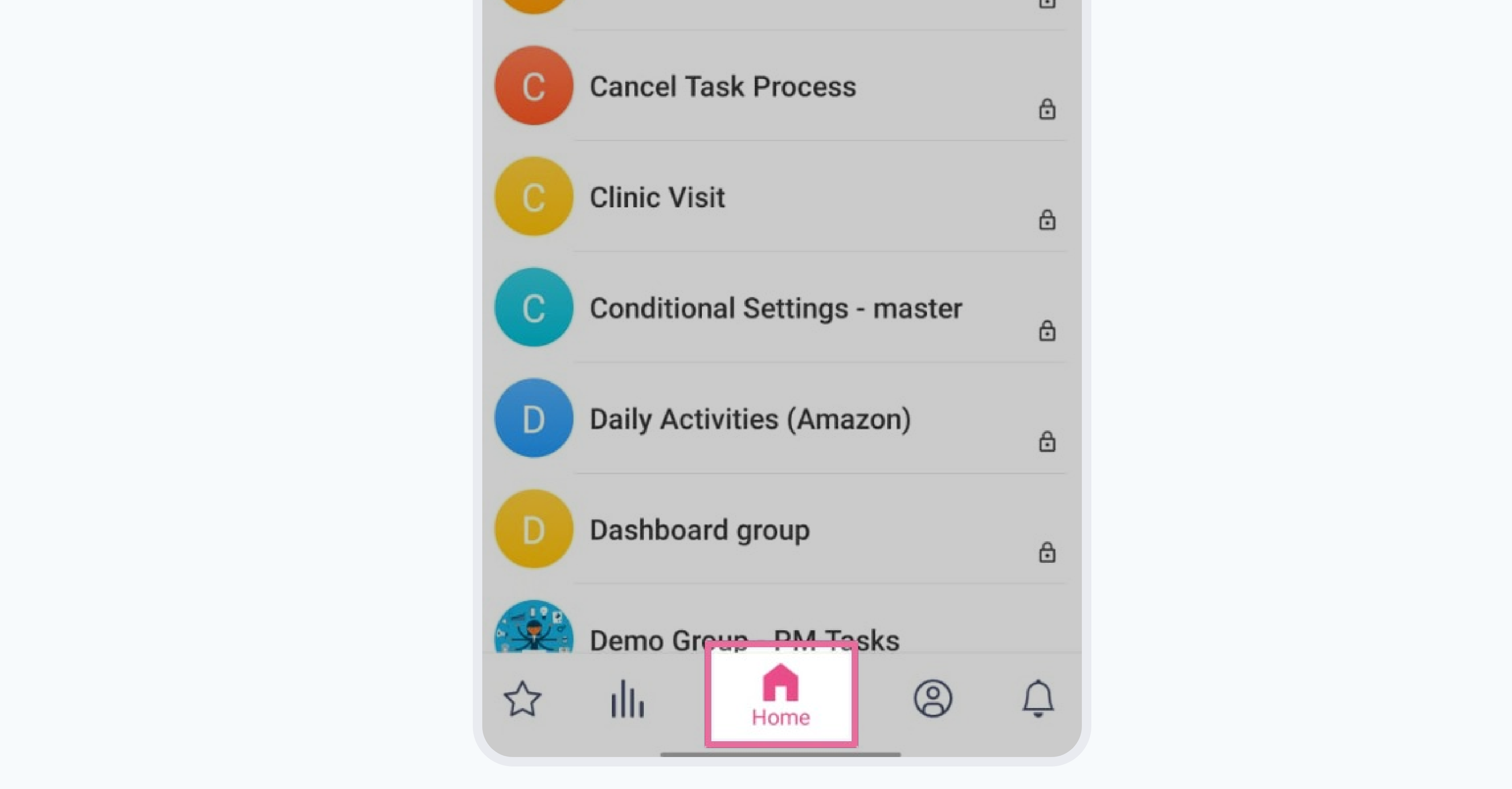


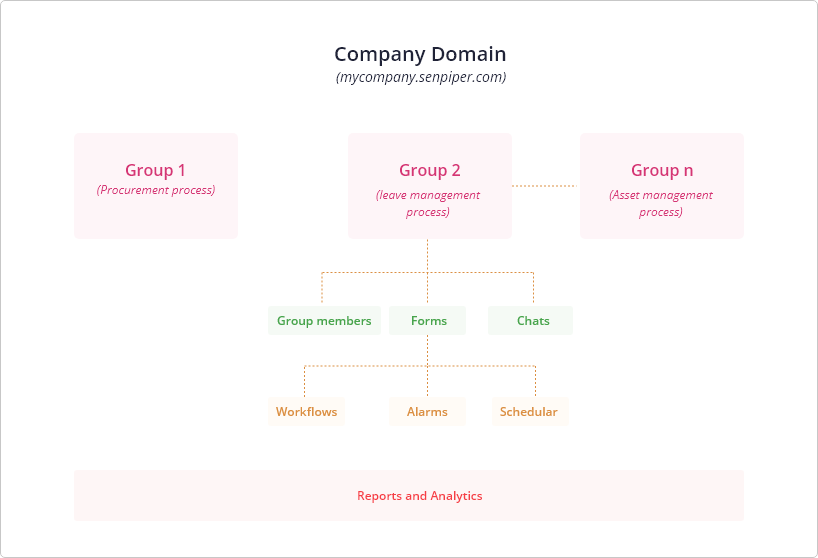
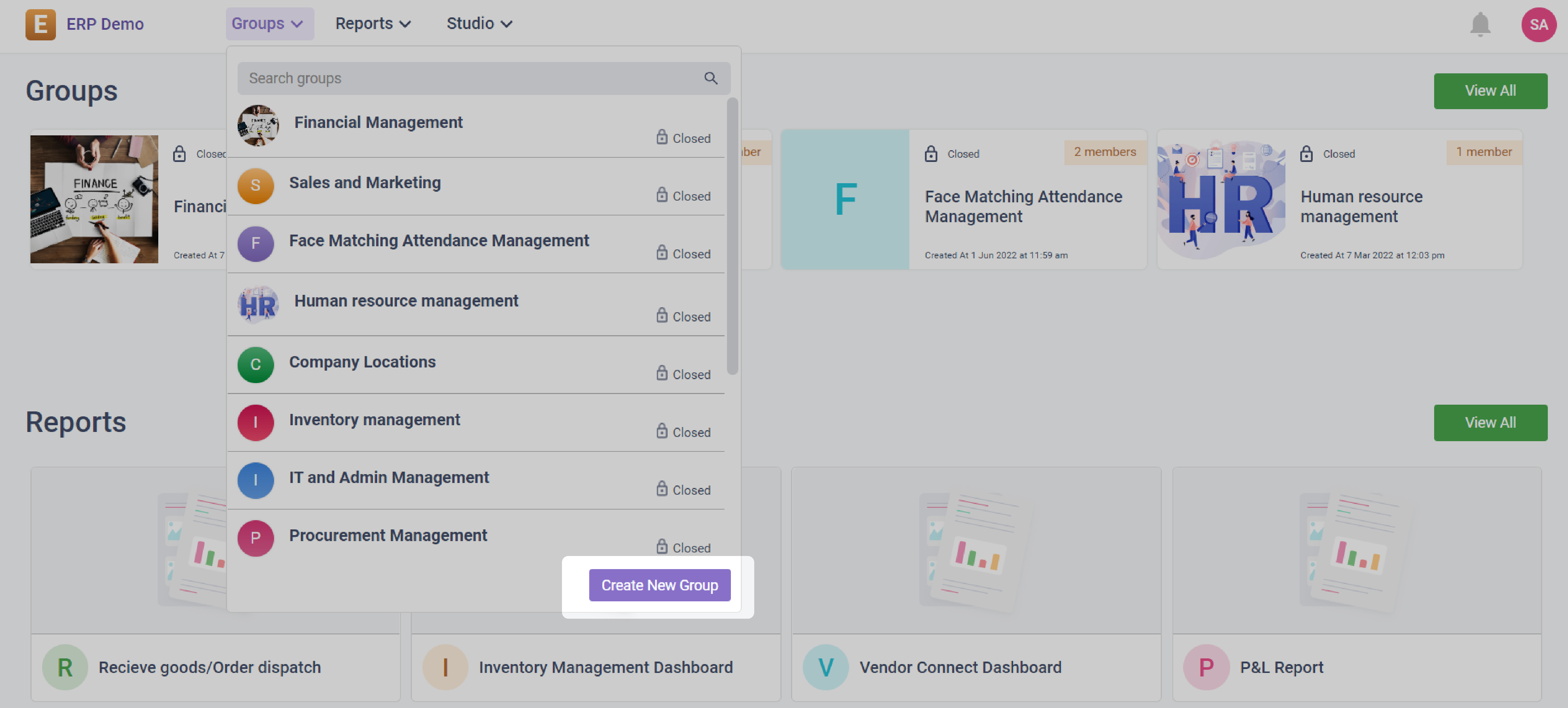
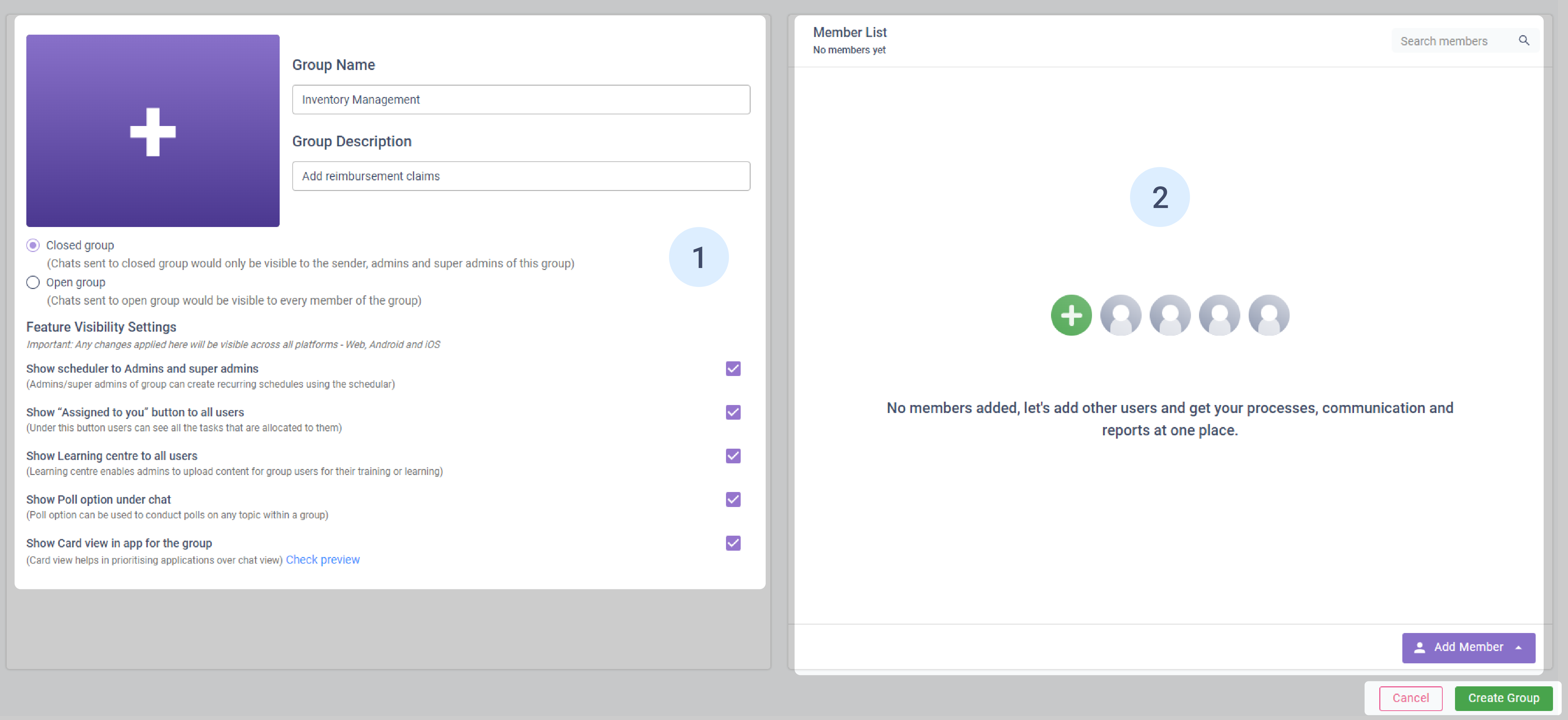
 icon |
| Group Name | The name of the group |
| Group Description | The description for the group |
| Closed Group | Select this if you want non-admin members cannot see other users' submissions. In these types of groups, only "group admins" can view all the submissions |
| Open Group | Select this if you want the group chats to be visible to all the members of the group |
3\. In the left pane, under Feature Visibility Settings, select the details as required:
| Field | Description |
| -------------------------------------------------------------------------------------------------------------------------------------------------------- | --------------------------------------------------------------------------------------------------------------------------------------------------------------------------------------------------------------------------------------------------------------------- |
| Show scheduler to Admins and super admins | Select this if you want to display the **Scheduler** button to the admins and super admins in the tab bar of the **Group Details** screen |
| Show "Assigned to you" button to all users | Select this if you want to display the **Assigned to you** button to all the users in the tab bar of the **Group Details** screen |
| Show [**Learning centre**](/media-folders/overview) to all users |
icon |
| Group Name | The name of the group |
| Group Description | The description for the group |
| Closed Group | Select this if you want non-admin members cannot see other users' submissions. In these types of groups, only "group admins" can view all the submissions |
| Open Group | Select this if you want the group chats to be visible to all the members of the group |
3\. In the left pane, under Feature Visibility Settings, select the details as required:
| Field | Description |
| -------------------------------------------------------------------------------------------------------------------------------------------------------- | --------------------------------------------------------------------------------------------------------------------------------------------------------------------------------------------------------------------------------------------------------------------- |
| Show scheduler to Admins and super admins | Select this if you want to display the **Scheduler** button to the admins and super admins in the tab bar of the **Group Details** screen |
| Show "Assigned to you" button to all users | Select this if you want to display the **Assigned to you** button to all the users in the tab bar of the **Group Details** screen |
| Show [**Learning centre**](/media-folders/overview) to all users | 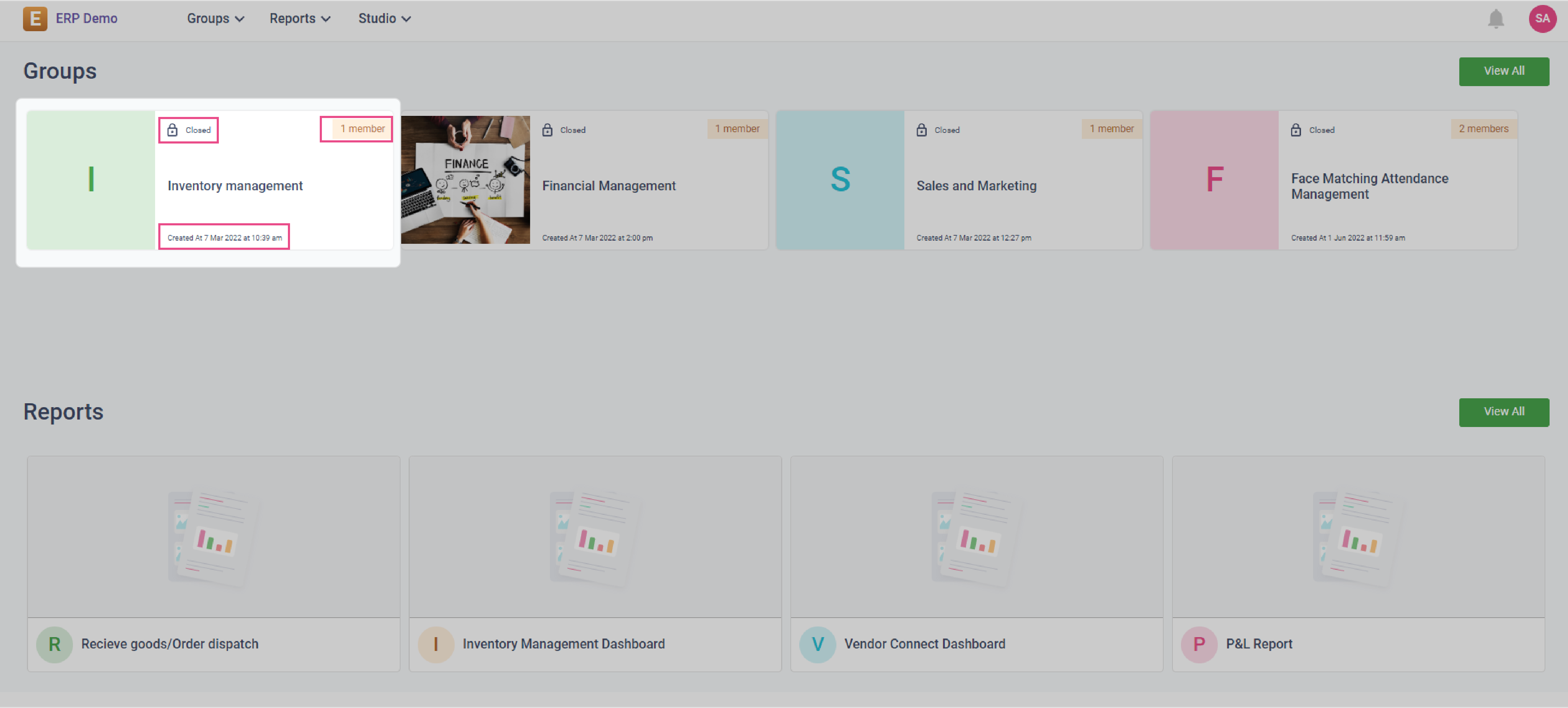


 . The **Settings** screen is displayed.


 .
.


 .\
The **Alerts** pane opens and all the notifications are displayed.

Each notification will have two buttons associated with it: **Delegate Tasks** and **Mark as Read**.

| Field | Description |
| -------------- | ------------------------------------------------------------------------------ |
| Delegate Tasks | Click on this if you want to delegate the current user's tasks to another user |
| Mark as Read | Click this if you want to mark the notification as read |
3\. If you clicked on **Delegate Tasks**,
* If the user has no pending tasks assigned to them, the **User removal alert for User/Group profile change** window is displayed. There is no action needed as there are no pending tasks for this user. At the bottom right of the **User removal alert for User/Group profile change** window, click **Close**.

* If the user has pending tasks assigned to them, the **Delegate tasks to another user** window is displayed.

i. From the options provided, select the type of task that needs to be delegated and then click **Next**.
| Task | Description |
| ------------------- | ----------------------------------------------------------------------------------------------------------------------------------------------------------------------------------------------- |
| All tasks | Select this is you want to delegate all the tasks of the selected user to another user |
| For Selected Groups |
.\
The **Alerts** pane opens and all the notifications are displayed.

Each notification will have two buttons associated with it: **Delegate Tasks** and **Mark as Read**.

| Field | Description |
| -------------- | ------------------------------------------------------------------------------ |
| Delegate Tasks | Click on this if you want to delegate the current user's tasks to another user |
| Mark as Read | Click this if you want to mark the notification as read |
3\. If you clicked on **Delegate Tasks**,
* If the user has no pending tasks assigned to them, the **User removal alert for User/Group profile change** window is displayed. There is no action needed as there are no pending tasks for this user. At the bottom right of the **User removal alert for User/Group profile change** window, click **Close**.

* If the user has pending tasks assigned to them, the **Delegate tasks to another user** window is displayed.

i. From the options provided, select the type of task that needs to be delegated and then click **Next**.
| Task | Description |
| ------------------- | ----------------------------------------------------------------------------------------------------------------------------------------------------------------------------------------------- |
| All tasks | Select this is you want to delegate all the tasks of the selected user to another user |
| For Selected Groups |  .
.


 .
.


 .
.


 .
.


 .
.


 .
.

 . To attach media (images, videos, audios and documents), click
  .
### Starting a poll
To start a poll,
1\. On the bottom left of the chat view screen, click **Poll**.
The **Create Poll** screen is displayed.
.
### Starting a poll
To start a poll,
1\. On the bottom left of the chat view screen, click **Poll**.
The **Create Poll** screen is displayed.


 .
To switch the view layout, [navigate to the **Assigned to you** view ](/groups-applications/group-details-on-web/pending-task-assigned-to-you/how-to-access-the-tasks-assigned-to-you)and at the top right of the **Assigned to you** screen, click
.
To switch the view layout, [navigate to the **Assigned to you** view ](/groups-applications/group-details-on-web/pending-task-assigned-to-you/how-to-access-the-tasks-assigned-to-you)and at the top right of the **Assigned to you** screen, click  .
.
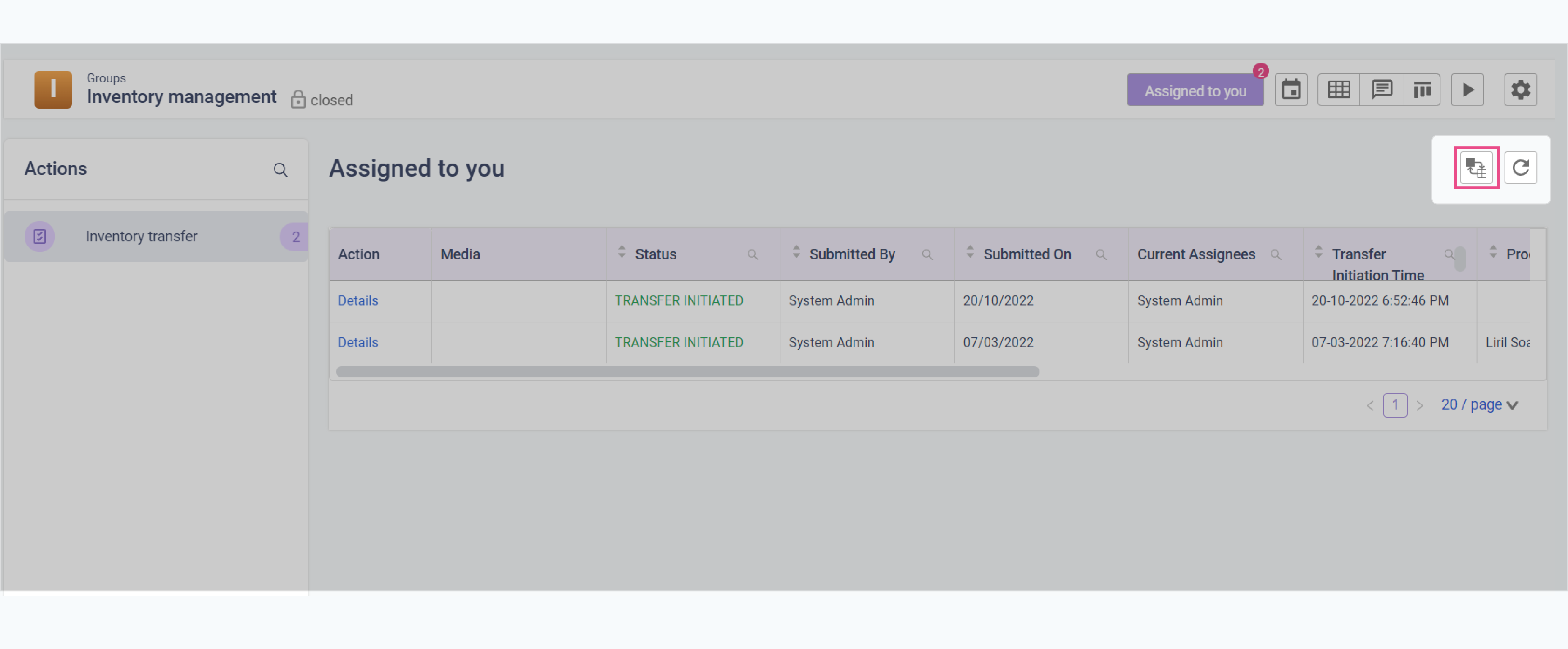
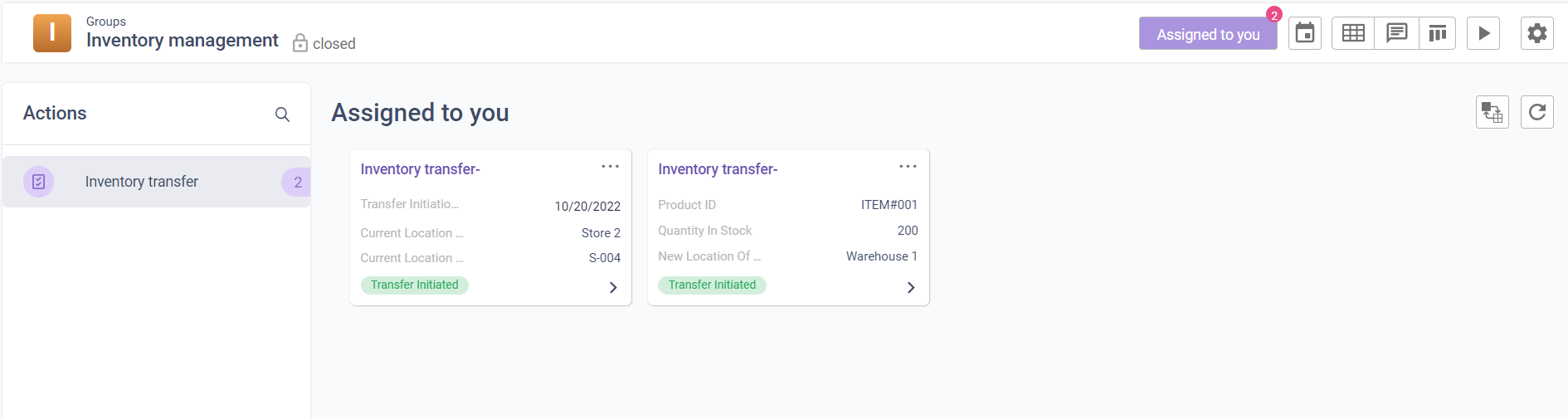
 .
.


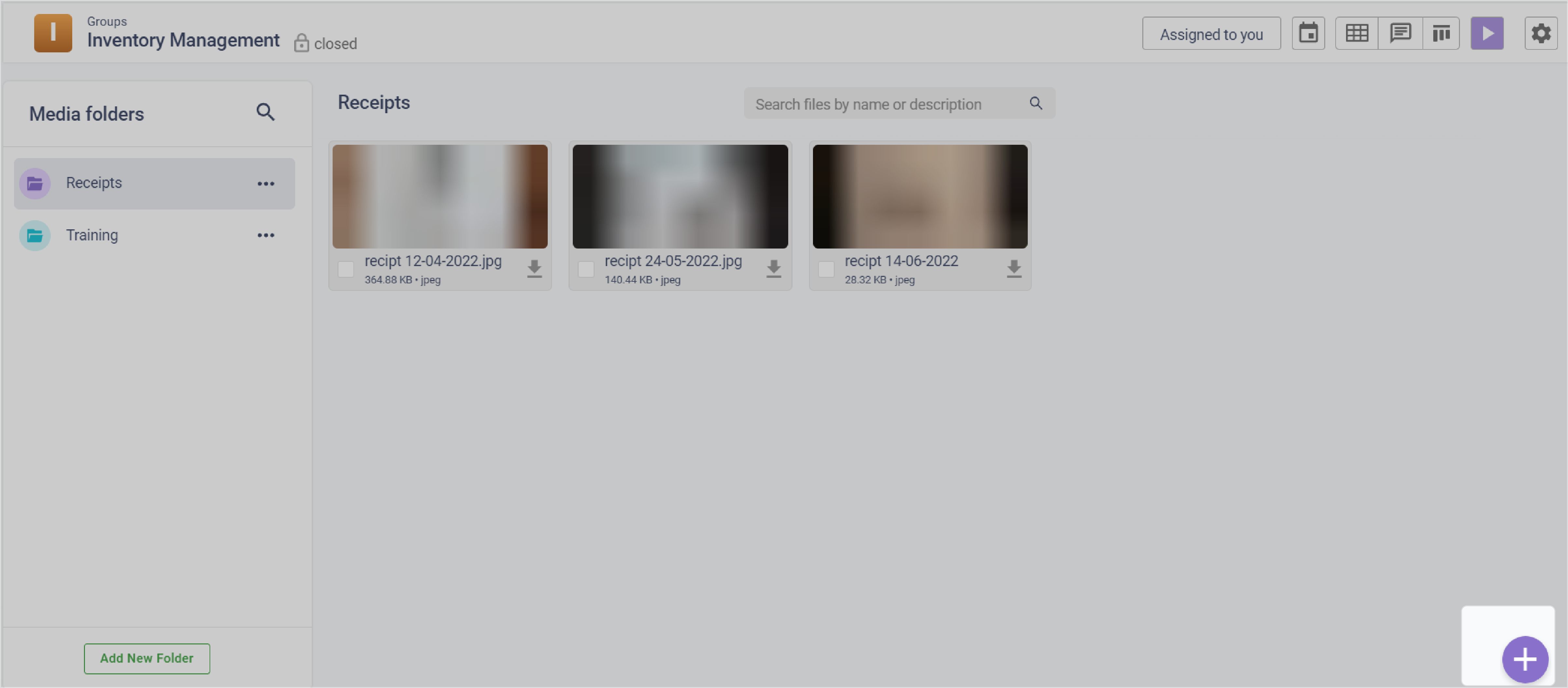
 . The two media upload options are displayed.

 , enter the URL in the text area and click **Add**.
The URL is added to the media directory and displayed in the selected folder.
, enter the URL in the text area and click **Add**.
The URL is added to the media directory and displayed in the selected folder.
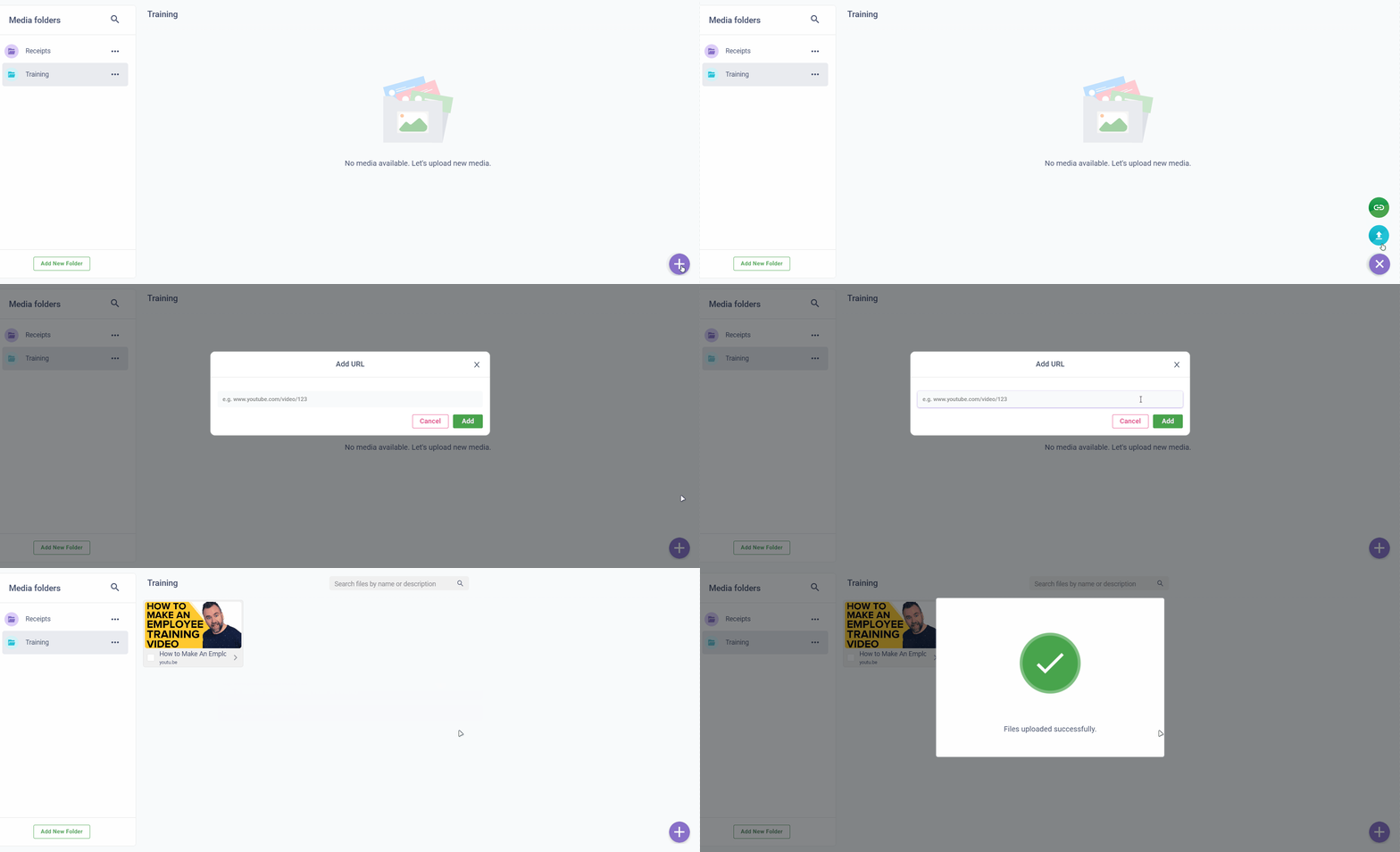
 , select the required media file and, click **Upload**.

The media file is uploaded to the media directory and is displayed in the selected folder.
, select the required media file and, click **Upload**.

The media file is uploaded to the media directory and is displayed in the selected folder.
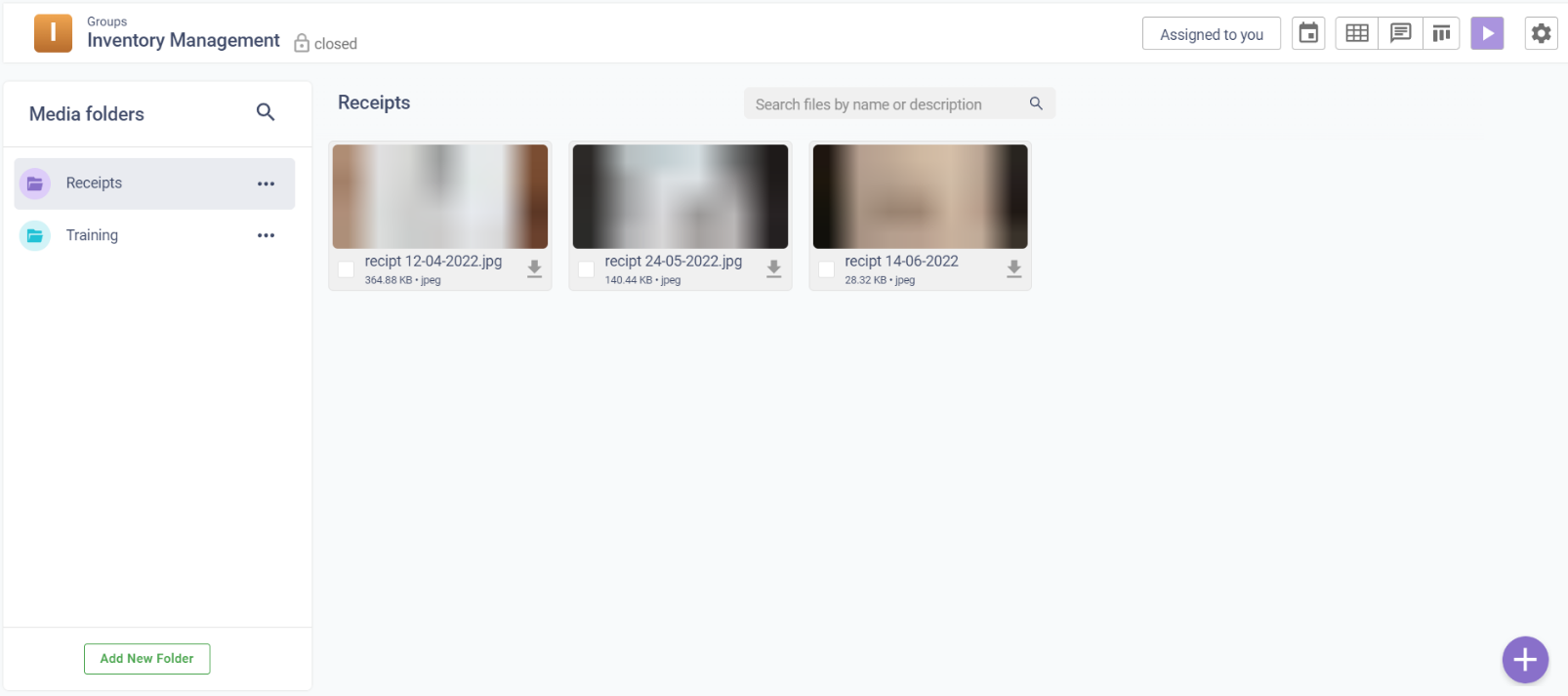


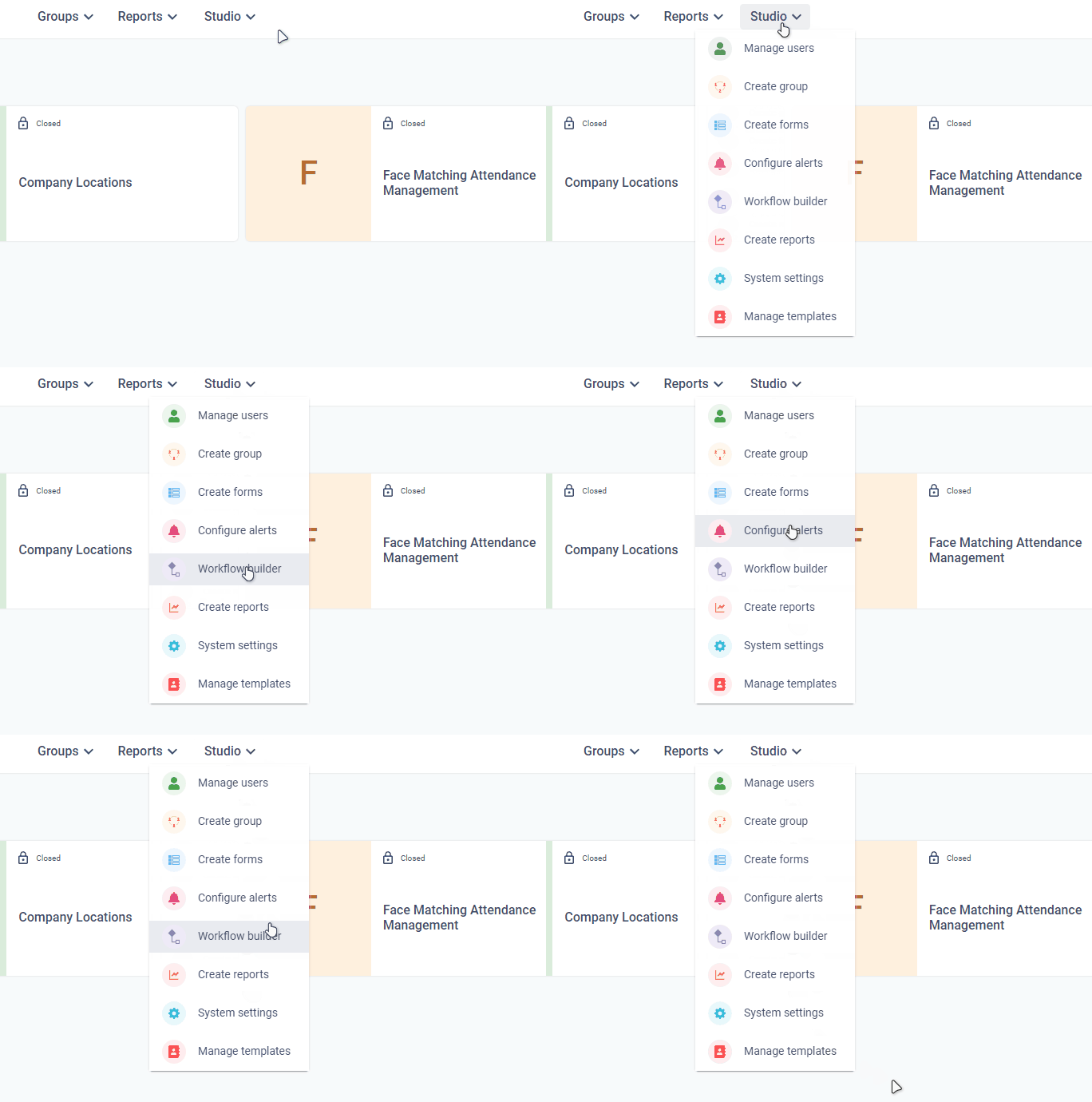


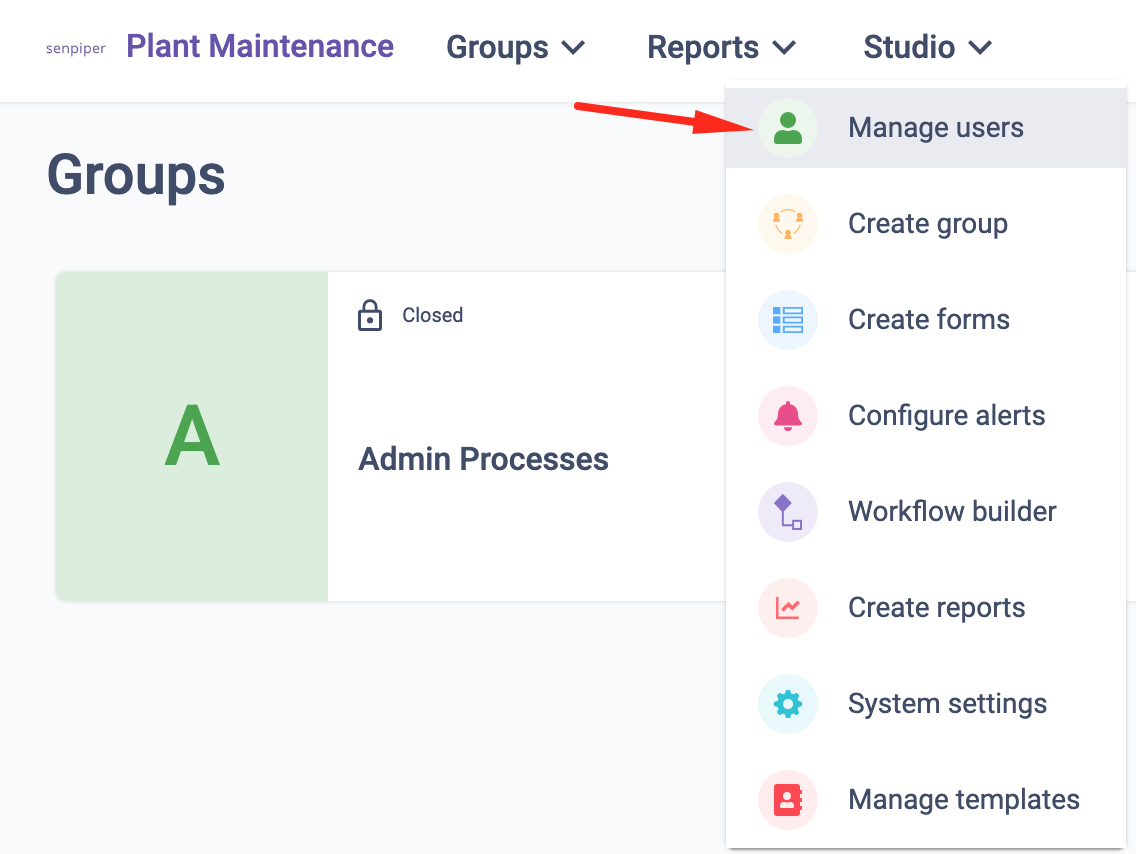


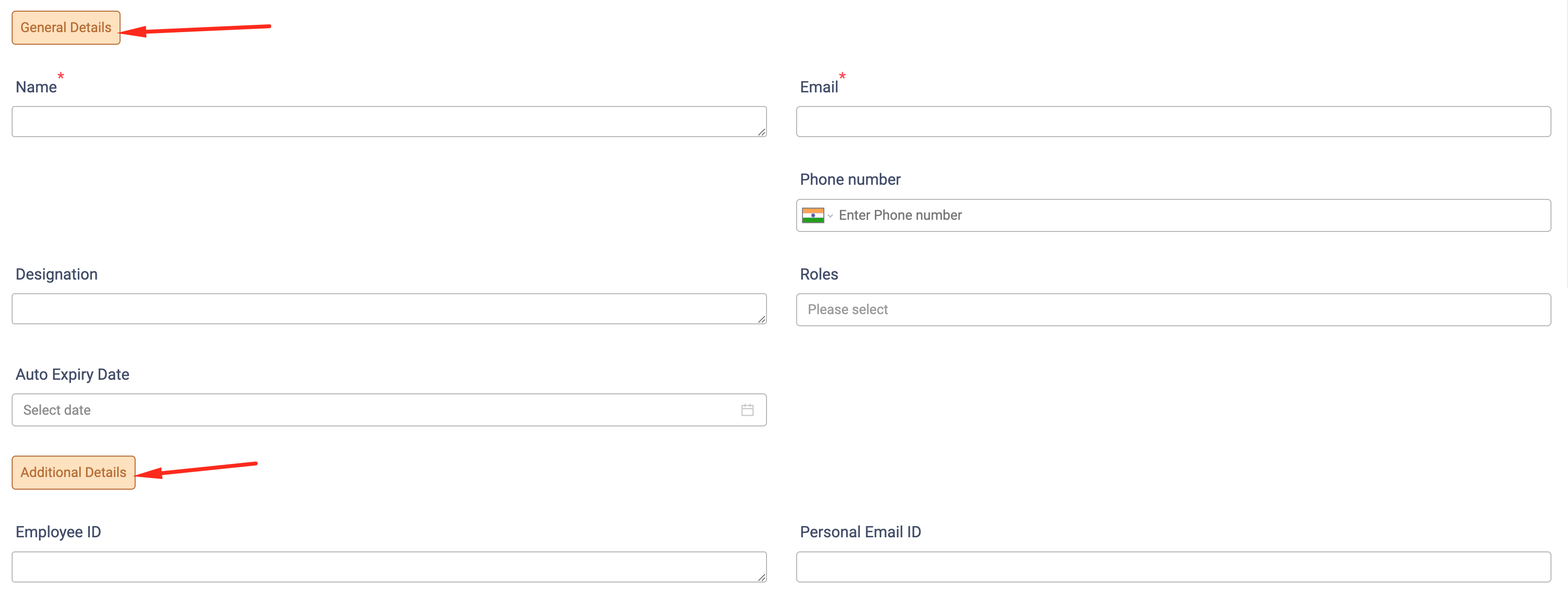

 . \
The **Bulk User Upload** screen is displayed.

3\. Under **Step 1: Download template file**, click **Download**. The template file is downloaded to your device.

4\. Open the template file and enter the user details.\
The template file will have the user parameters as individual columns.
. \
The **Bulk User Upload** screen is displayed.

3\. Under **Step 1: Download template file**, click **Download**. The template file is downloaded to your device.

4\. Open the template file and enter the user details.\
The template file will have the user parameters as individual columns.


 . \
Since we selected email as the parameter, we will enter the email address of the user in the **Search** field.
The user with the entered value for the parameter is displayed in the user list.
. \
Since we selected email as the parameter, we will enter the email address of the user in the **Search** field.
The user with the entered value for the parameter is displayed in the user list.


 . The **Choose Filter** screen is displayed.
4\. To select the parameter(s) based on which you want to add a condition, click **Select Fields**. The list of parameters is displayed.
5\. From the list of parameters, select one or more parameters based on which you want to add a
condition and then, at the bottom of the parameter list, click **Apply**.
> Let's say we want to add a condition based on 1 parameter, **Name** to search the user. Thus we have selected **Name** from the list of parameters as shown in the above image.
The selected parameter are displayed on the **Choose Filter** screen.
6\. For a given parameter, click **Select operator and value** and then click **Select operator**.
> Let's say for the **Name** parameter, we select the operator **CONTAINS**. On selection of the operator, a text field is displayed.
7\. In the text field, enter the value that the parameter in the user list is to be compared with and then at the bottom right of the **Choose Filter** screen, click **Apply**.
> Let's say we enter the value as '**a'** as given below.
. The **Choose Filter** screen is displayed.
4\. To select the parameter(s) based on which you want to add a condition, click **Select Fields**. The list of parameters is displayed.
5\. From the list of parameters, select one or more parameters based on which you want to add a
condition and then, at the bottom of the parameter list, click **Apply**.
> Let's say we want to add a condition based on 1 parameter, **Name** to search the user. Thus we have selected **Name** from the list of parameters as shown in the above image.
The selected parameter are displayed on the **Choose Filter** screen.
6\. For a given parameter, click **Select operator and value** and then click **Select operator**.
> Let's say for the **Name** parameter, we select the operator **CONTAINS**. On selection of the operator, a text field is displayed.
7\. In the text field, enter the value that the parameter in the user list is to be compared with and then at the bottom right of the **Choose Filter** screen, click **Apply**.
> Let's say we enter the value as '**a'** as given below.


 . The **Download Data** screen is displayed.
3\. From the **Select Fields** dropdown, select the parameters that you want to be displayed in the downloaded MS Excel file.
> As you can see in the above image, we have selected **All fields**. This means all the parameters of the users in the user list will be displayed in the downloaded MS Excel file.
4\. At the bottom right of the **Download Data** screen, click **Download**. The selected user list is downloaded to your device as an MS Excel file.
. The **Download Data** screen is displayed.
3\. From the **Select Fields** dropdown, select the parameters that you want to be displayed in the downloaded MS Excel file.
> As you can see in the above image, we have selected **All fields**. This means all the parameters of the users in the user list will be displayed in the downloaded MS Excel file.
4\. At the bottom right of the **Download Data** screen, click **Download**. The selected user list is downloaded to your device as an MS Excel file.